Demo Overview Starter Kits Design Swarms Prompt Tools Analysis Videos

Four Pillars of Design Intelligence

Starter Kits, Design Swarms, Prompt Tools, and Analysis — the complete design system toolkit for Google Stitch and the DESIGN.md ecosystem

99
Starter Kits
4
Swarm Agents
50+
Prompt Templates
50+
Analysis Rules
The Four Pillars

Starter Kits

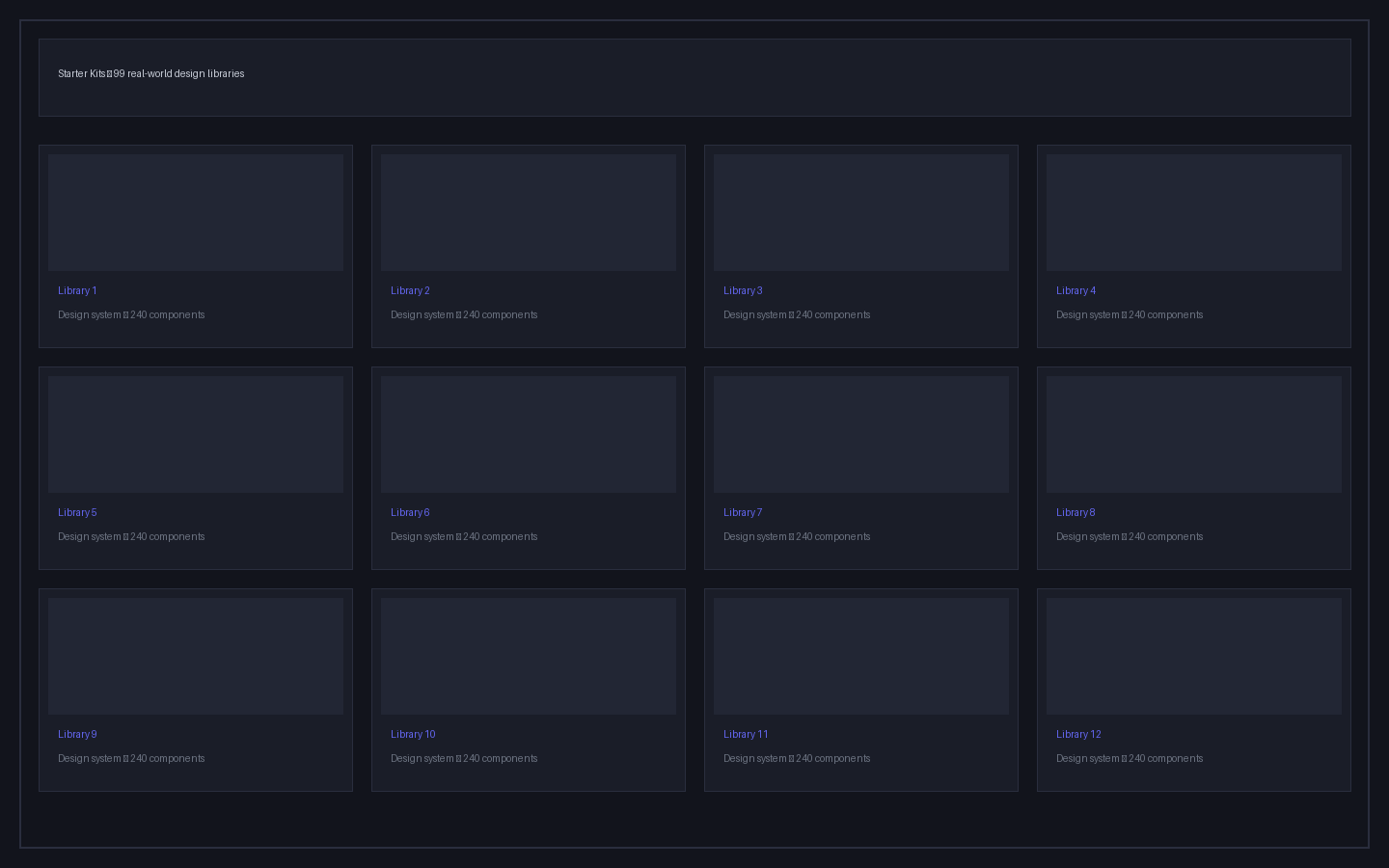
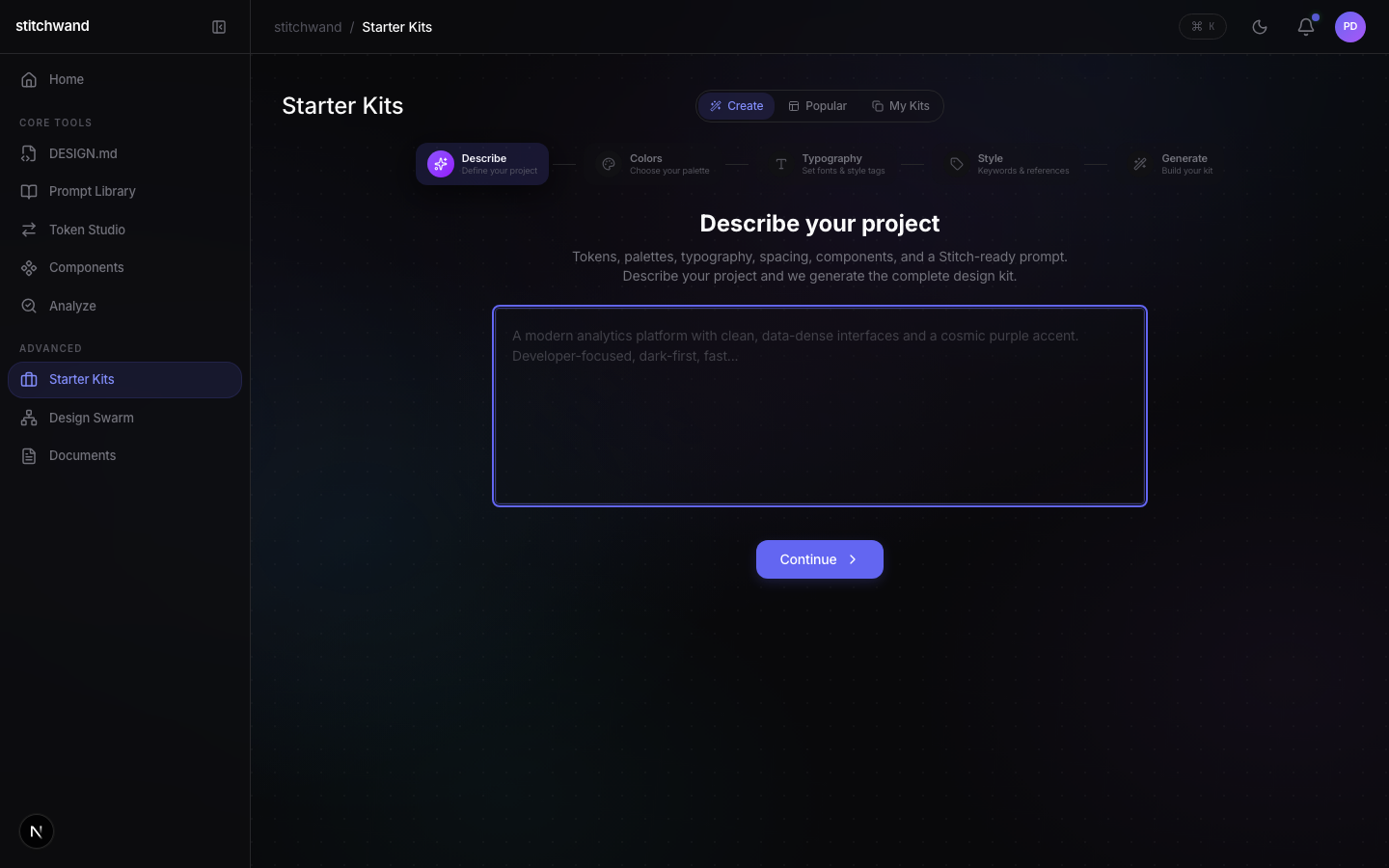
99 real-world design libraries from brands like Twitch, Discord, and Netflix. Browse the gallery, pick a foundation, or create your own with the 5-step wizard and animated demo fill.

Pro Feature

Design Swarms

Multiple AI agents — Color, Typography, Spacing, Components — collaborate in parallel to generate a coordinated design system. Like having a design team that finishes in seconds.

Pro Feature

Prompt Tools

Pre-built AI prompt templates for design systems with full metadata tracking, detail drawer, Timeline view, and export. Every interaction saved as a reusable template.

Core Feature

Analysis

Validate with 50+ rules, diff between versions, lint for naming issues, and audit for accessibility. Four tools in one page that cover every quality dimension.

Core Feature
Product Overview
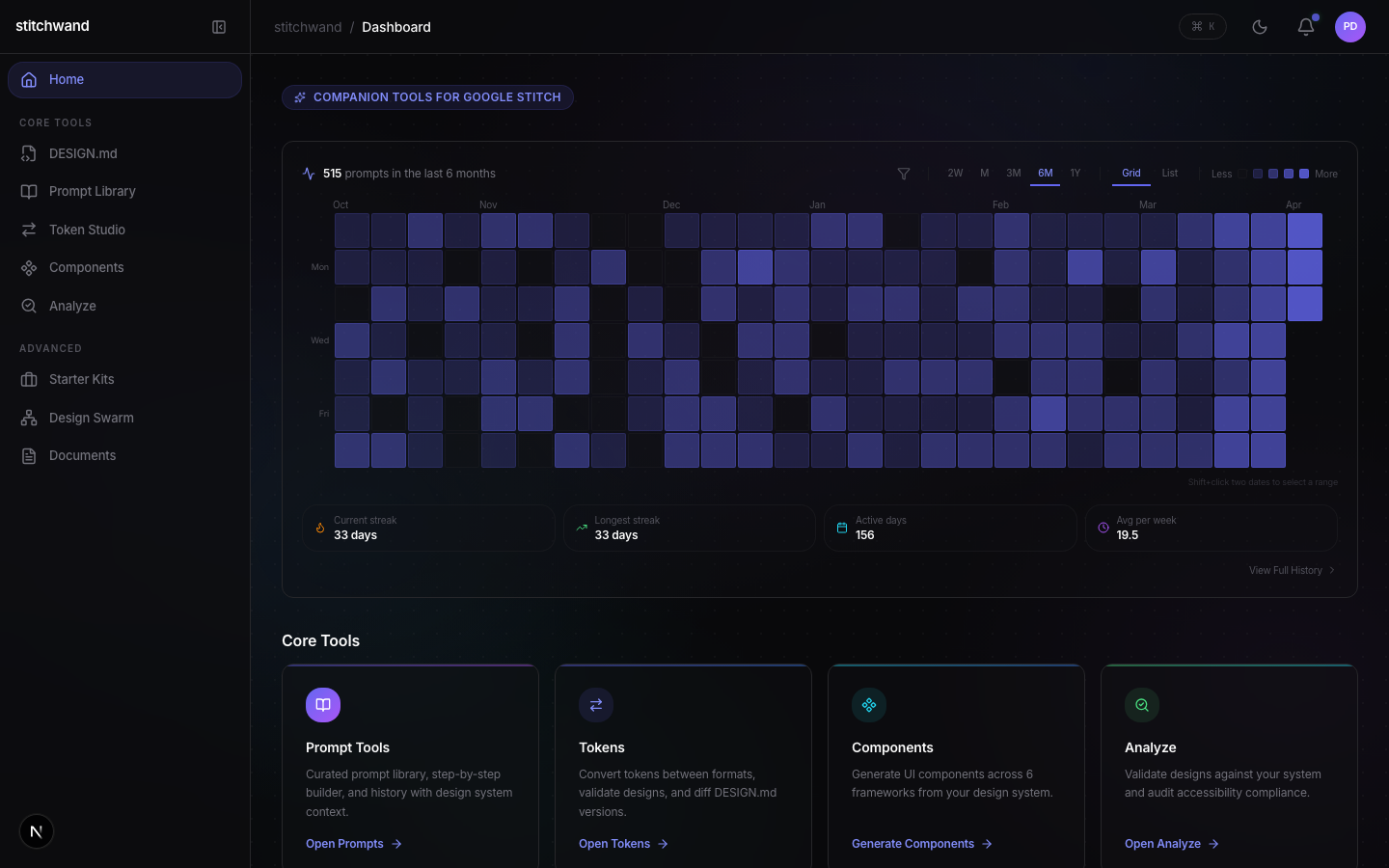
stitchwand Dashboard

How It Fits Together

Each pillar feeds into the next — a complete design system pipeline

1. Start with Kits

Pick from 99 design libraries or create your own. Get a complete DESIGN.md in under a minute.

2. Swarm for Scale

Multiple AI agents generate coordinated tokens — colors, typography, spacing — in parallel.

3. Prompt to Build

Pre-built prompts inject your design system context into any AI tool. Every interaction tracked.

4. Analyze Quality

Validate, diff, lint, and audit. 50+ rules catch issues before they ship to production.

5. Ship to Stitch

Export validated DESIGN.md. Google Stitch reads it natively and generates production UI.

6. Iterate

Diff versions, track changes, and regenerate docs. Your design system evolves with your product.

Ready to try?

See what the four pillars can do for your design system.

Launch stitchwand

Starter Kits

99 real-world design libraries. Browse the Popular gallery, pick a foundation, or create your own with the 5-step wizard.

Starter Kits Gallery

Presenter Script

Talking points and demo steps for live presentations

Starter Kits Demo
~2 min
0:00 [Open Starter Kits page. Show Popular tab with sticky header.]
0:05 "99 real-world design systems, ready to use. Twitch, Discord, Netflix, Slack, YouTube — browse the gallery and start with a proven foundation."
0:25 [Scroll through gallery. Note sticky header with backdrop blur staying pinned.]
0:35 [Switch to Custom tab. Press 'v' to trigger animated demo fill with sparkle effects.]
0:40 "Or create your own — press 'v' and watch: vision types word by word with sparkle effects, colors fill in, fonts auto-select, tags populate."
1:10 [Hit Generate. Show complete output: tokens, palettes, typography, spacing, components, Stitch prompt.]
1:15 "Complete design kit generated. Tokens, palettes, typography, components, and a Stitch-ready prompt. Auto-saved as a reusable DESIGN.md library."
1:45 "Tell us about your project and we build the system."
Custom Starter Kit Creation
3-4 min · Deep Dive
0:00 [Open Starter Kits page. Switch to Custom tab.]
0:05 "Let us build a reusable Starter Kit and save it to your library."
0:15 [Type a detailed vision statement. Select brand colors. Choose typography.]
0:20 "Start with your vision. Describe your brand, your audience, and your design goals."
0:50 [Add tags: SaaS, dark-mode, accessibility, enterprise. Fill in reference URLs.]
0:55 "Add tags and reference URLs. These become metadata in the generated DESIGN.md."
1:20 [Hit Generate. Show the complete output. Note the auto-save.]
1:25 "Generate, and your custom kit auto-saves as a reusable DESIGN.md library. Next time, just select it from the gallery."
2:00 [Navigate back to Popular tab. Show the custom kit appearing in the library.]
2:05 "Your custom kit is now in the gallery alongside the 99 community kits. Share it with your team or keep it private."
Design System from Scratch
5-7 min · Tutorial
0:00 [Open Starter Kits page. Switch to Custom tab.]
0:05 "No existing tokens? No problem. Let us build a complete design system from scratch."
0:15 [Walk through the 5-step wizard: type a vision statement, pick colors, select typography, add tags, hit Generate.]
0:20 "Describe your project. Pick colors. Select typography. Add tags. Generate."
1:30 [Show generated DESIGN.md output. Copy it.]
1:35 "Your design system is generated — tokens, palettes, typography scale, spacing, component guidelines, and a Stitch-ready prompt."
2:10 [Navigate to Token Studio. Paste the DESIGN.md. Convert to CSS Variables.]
2:15 "Now take that DESIGN.md to Token Studio and convert to CSS variables, Tailwind config, SCSS — whatever your project needs."
2:50 [Navigate to Validate. Run validation on the output.]
2:55 "Validate the result to make sure everything is production-ready."
3:30 [Navigate to Components. Show generated component code.]
3:35 "Generate framework-specific components from your tokens. React, Vue, Svelte — all from the same source of truth."
4:10 "From zero to a complete, validated, component-ready design system in under 5 minutes."

Live Demo Guide

Step-by-step presenter cards with talking points and screenshots

1

Browse the Gallery ~90s

What to say

99 real-world design systems from the most recognized brands in tech. Twitch, Discord, Netflix, Slack, YouTube, Spotify, Linear, Notion — browse the gallery, click any kit, and get a complete DESIGN.md ready for Google Stitch.

What to show
  • Navigate to Starter Kits and show the Popular gallery with sticky header
  • Scroll through the 99 design libraries, pointing out recognizable brands
  • Click a kit to show the generated DESIGN.md output
  • Note the sticky header with backdrop blur staying pinned while scrolling
Starter Kits Gallery
2

Animated Demo Fill ~90s

What to say

Switch to Create mode and press 'v' for the animated demo fill. Watch the vision statement type word by word with sparkle effects, colors fill in with smooth transitions, fonts auto-select, and tags populate. This is the wow moment for any audience.

What to show
  • Switch to Custom tab in Starter Kits
  • Press 'v' to trigger the animated demo fill
  • Let the sparkle effects and auto-fill play out completely
  • Pause to let the audience absorb the animation
Animated Demo Fill
3

5-Step Wizard ~2 min

What to say

The wizard walks you through five steps: Vision, Colors, Typography, Tags, and Create. Each step builds on the last. By the end, you have a complete DESIGN.md with tokens, palettes, typography scale, spacing, component guidelines, and a Stitch-ready prompt.

What to show
  • Walk through each wizard step with real input
  • Show how each step builds on the previous one
  • Hit Generate and show the complete output
  • Demonstrate the auto-save to the gallery
5-Step Wizard

Start with a Kit

99 design systems ready to use, or create your own in under a minute.

Open Starter Kits

Design Swarms

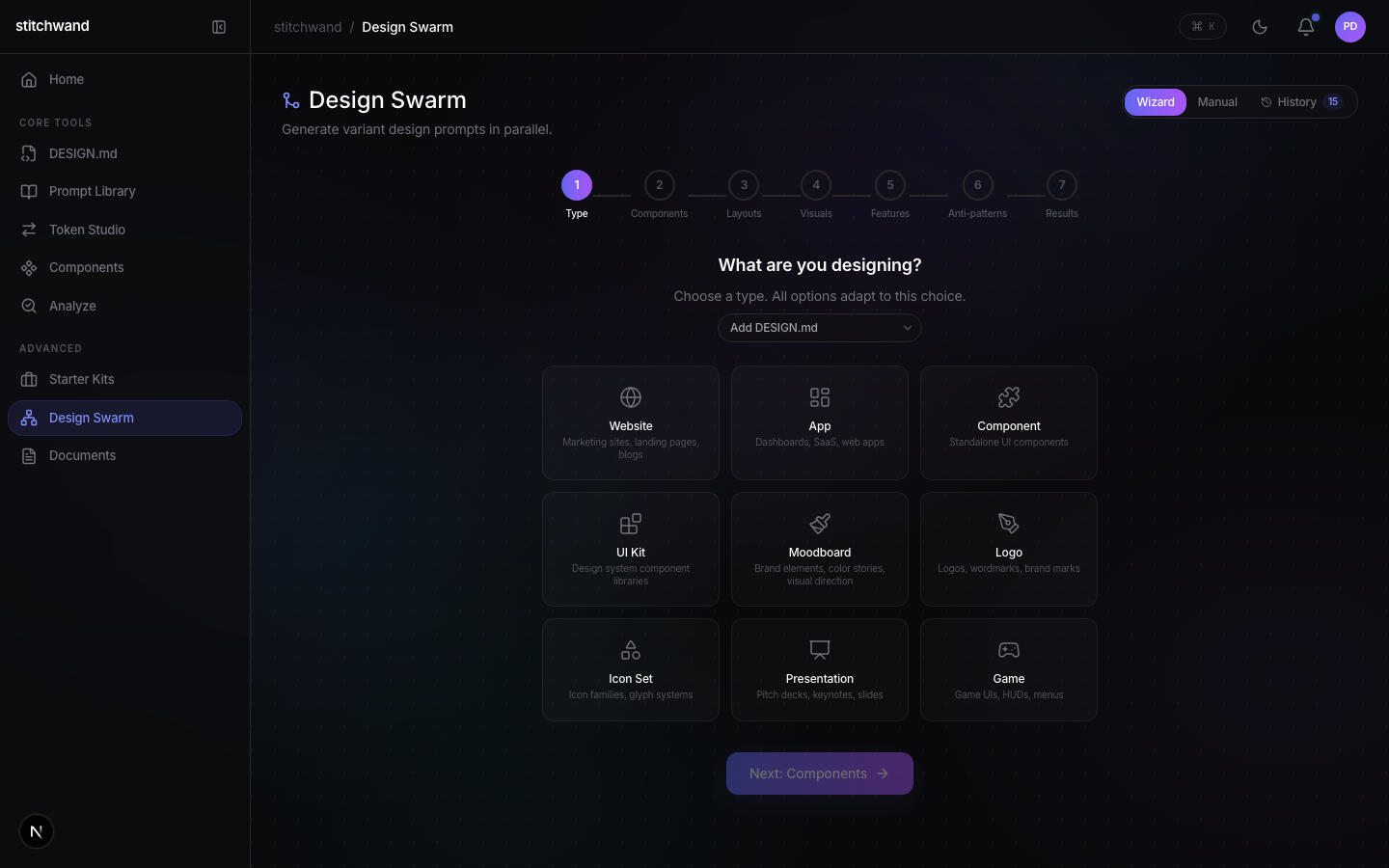
Multiple AI agents collaborate in parallel to generate a coordinated design system. Color, Typography, Spacing, and Components — working as a team.

Design Swarm Interface
Design Swarm

Presenter Script

Talking points and demo steps for live presentations

Design Swarm Demo
2-3 min
0:00 [Open Design Swarm page. Show the 5-step wizard: Type, Visuals, Token Studio, Components, Generate.]
0:05 "Design Swarm is the multi-agent feature. Define what you want, and multiple AI agents collaborate to generate a coordinated design system."
0:20 [Walk through wizard steps. On step 3, show Color Agent, Typography Agent, Spacing Agent running in parallel with live status indicators.]
0:25 "Three agents working in parallel — Color Agent generating the palette, Typography Agent building the type scale, Spacing Agent defining the grid."
1:00 [Show coordinated output from all agents merged into a single design system.]
1:05 "The result: a complete, coordinated design system. Not three separate outputs — one unified system where every decision reinforces the others."
1:40 [Export the result as DESIGN.md.]
1:45 "Export as DESIGN.md and it is Stitch-ready. It is like having a design team that works in parallel. Except it finishes in seconds."
Swarm vs Manual Workflow
~60s · Comparison
0:00 [Split screen. Left: "Manual". Right: "Design Swarm".]
0:05 "Manually: pick colors, then build typography, then spacing, then check consistency. Hours of iteration."
0:15 [Right side: agents spinning up in parallel, all finishing near-simultaneously.]
0:20 "Design Swarm: all four agents work simultaneously. Color, typography, spacing, and components — coordinated from the start."
0:40 [Show unified output on right side. Manual side still iterating.]
0:45 "Hours of manual work, or seconds with agents. Same quality, coordinated output."

Live Demo Guide

Step-by-step presenter cards for Design Swarm demos

1

Define the System ~60s

What to say

Start by describing what you want. Pick a system type — SaaS dashboard, e-commerce, marketing site — and define your visual direction. The swarm uses this context to generate tokens that work together.

What to show
  • Open Design Swarm and select a system type
  • Define visual direction: dark mode, accessible, enterprise
  • Show the wizard progression from Type to Visuals
Define the System
2

Watch Agents Collaborate ~90s

What to say

This is the wow moment. Three agents spin up simultaneously — Color Agent generates the palette, Typography Agent builds the type scale, Spacing Agent defines the grid. Watch the live status indicators as they work in parallel.

What to show
  • Hit Generate and watch agents spin up with live status
  • Point out the Color Agent, Typography Agent, and Spacing Agent running simultaneously
  • Show the real-time progress indicators for each agent
  • Let the audience watch the agents complete in parallel
Agents Collaborating
3

Review Coordinated Output ~60s

What to say

The result is not three separate outputs — it is one unified design system. Every color, font, and spacing value was generated with awareness of the others. Export as DESIGN.md and it is immediately Stitch-ready.

What to show
  • Review the merged output from all agents
  • Show how color and typography decisions are coordinated
  • Export the result as DESIGN.md
  • Open the exported file and show it is valid and Stitch-ready
Coordinated Output

Agents, not arguments

A design team that works in parallel and never disagrees on naming conventions.

Open Design Swarm

Prompt Tools

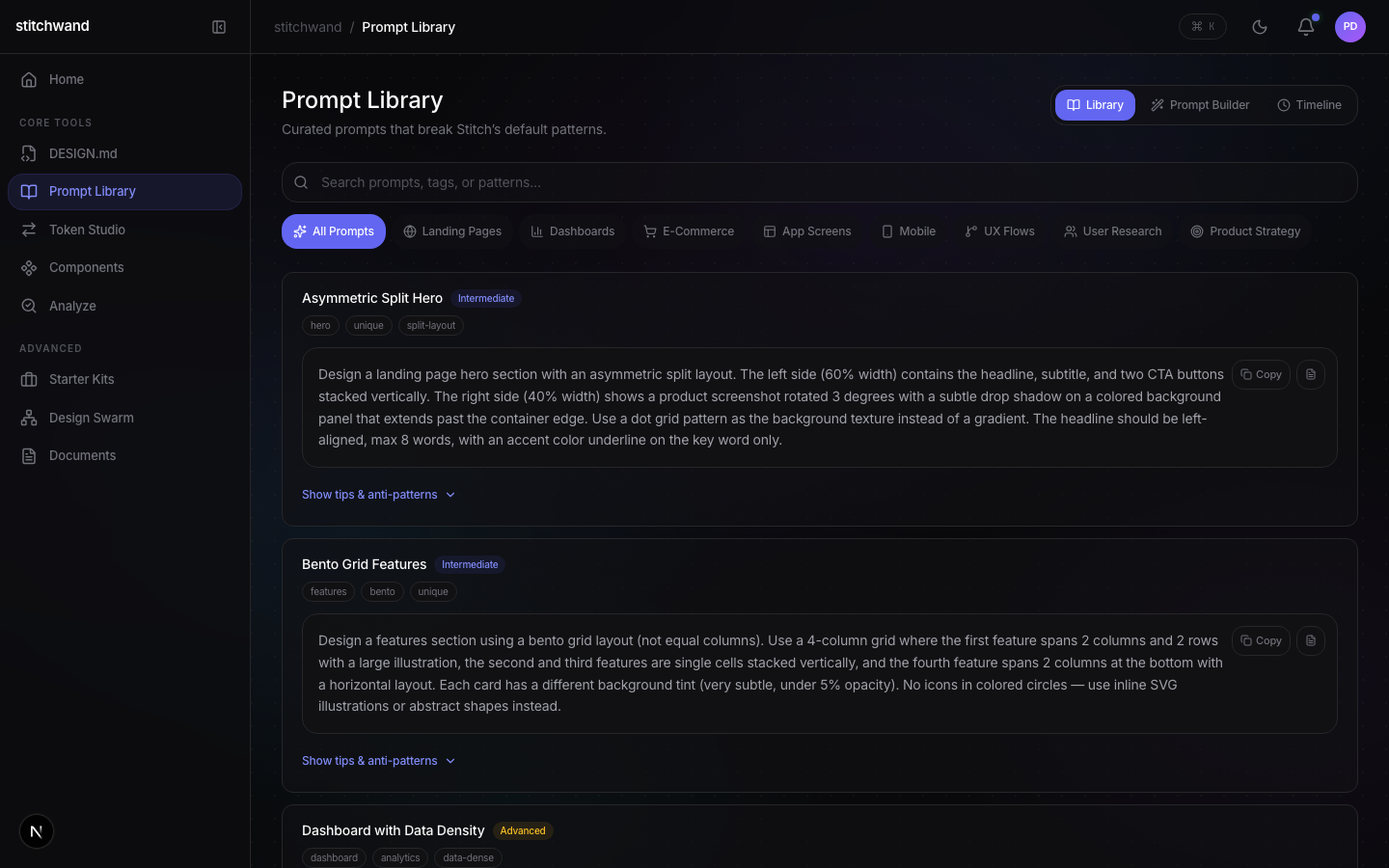
Pre-built AI prompt templates for design systems. Full metadata tracking, detail drawer, Timeline view, and export. Every interaction is a reusable template.

Prompt Library
Prompt Library

Presenter Script

Talking points and demo steps for Prompt Tools demos

Prompt Library Demo
2-3 min
0:00 [Open Prompt Library page. Show the template grid.]
0:05 "Every AI prompt we generate is saved here with full metadata — model, token count, timestamp, result."
0:15 [Click a prompt to open the Prompt Detail Drawer. Show full prompt content, metadata, copy button, notes field, save-as-template.]
0:20 "Click any prompt to see the full detail drawer — copy it, add notes, save as a template. Source, date, and design system metadata are all tracked."
0:55 [Switch to Timeline tab. Show chronological prompt history. Demonstrate search, sort (newest/oldest/A-Z), filter by source.]
1:00 "The Timeline tab gives you a chronological view of every prompt you have used. Search, sort, filter by source."
1:35 [Click Export. Show CSV/JSON options.]
1:40 "Export your entire prompt history as CSV or JSON. Full audit trail of every design system interaction."
Prompt Templates for Stitch
~2 min · Tutorial
0:00 [Open Prompt Library. Show design-system-aware templates.]
0:05 "Pre-built prompts that inject your design system context automatically. No more copying tokens by hand into every AI conversation."
0:20 [Select a template. Show how it references the loaded DESIGN.md tokens.]
0:25 "Each template references your loaded tokens — colors, typography, spacing — so the AI output matches your design system."
0:50 [Copy the prompt. Paste into Google Stitch or Claude. Show the context-aware result.]
0:55 "Paste into Stitch, Claude, or any AI tool. The output uses your exact tokens instead of generic defaults."
1:25 "Ready-made prompts for Stitch and other AI tools. Each one injects your design system context automatically."
MCP-Powered Prompts
2-3 min · Advanced
0:00 [Open Claude Code or Cursor with MCP server configured.]
0:05 "stitchwand ships as an MCP server. Any AI assistant that supports MCP can call convert, validate, diff, and lint directly."
0:20 [Ask the assistant to convert a Tailwind config to DESIGN.md. Show the MCP tool calls.]
0:25 "Just ask: 'convert my Tailwind config to DESIGN.md' — Claude calls the MCP server, runs the conversion, returns the result."
1:00 [Ask it to validate the result. Show inline pass/fail.]
1:05 "Ask it to validate — pass/fail results inline. Your design system tools are always one prompt away."
1:40 "Claude, Cursor, any MCP client — your AI pair programmer gains design system awareness without leaving the editor."

Live Demo Guide

Step-by-step presenter cards for Prompt Tools demos

1

Browse Templates ~60s

What to say

The Prompt Library ships with pre-built templates for every design system task: component generation, token validation, accessibility checks, migration prompts. Each template is design-system-aware — it automatically references your loaded tokens.

What to show
  • Open the Prompt Library page and browse the template grid
  • Show the variety: component prompts, validation prompts, migration prompts
  • Click a template to show how it references loaded design system tokens
Prompt Templates
2

Detail Drawer ~60s

What to say

Click any prompt to open the detail drawer. Full content, metadata, one-click copy, notes field, and save-as-template. Every prompt interaction is tracked with model, token count, and timestamp.

What to show
  • Click a prompt to open the detail drawer
  • Show the full prompt content and metadata (model, tokens, date)
  • Demonstrate copy, add notes, and save-as-template
  • Close the drawer and open another prompt to show consistency
Detail Drawer
3

Timeline & Export ~90s

What to say

The Timeline view gives you a chronological history of every AI interaction. Search, sort, filter by source, and export your entire prompt history as CSV or JSON. This is a full audit trail for design system decisions.

What to show
  • Switch to Timeline view and show the chronological prompt history
  • Demonstrate search and sort (newest, oldest, A-Z)
  • Filter by source to show only specific prompt types
  • Click Export and show CSV/JSON options
Timeline and Export

Prompts with context

Your design system tokens injected into every AI conversation, automatically.

Open Prompt Library

Analysis

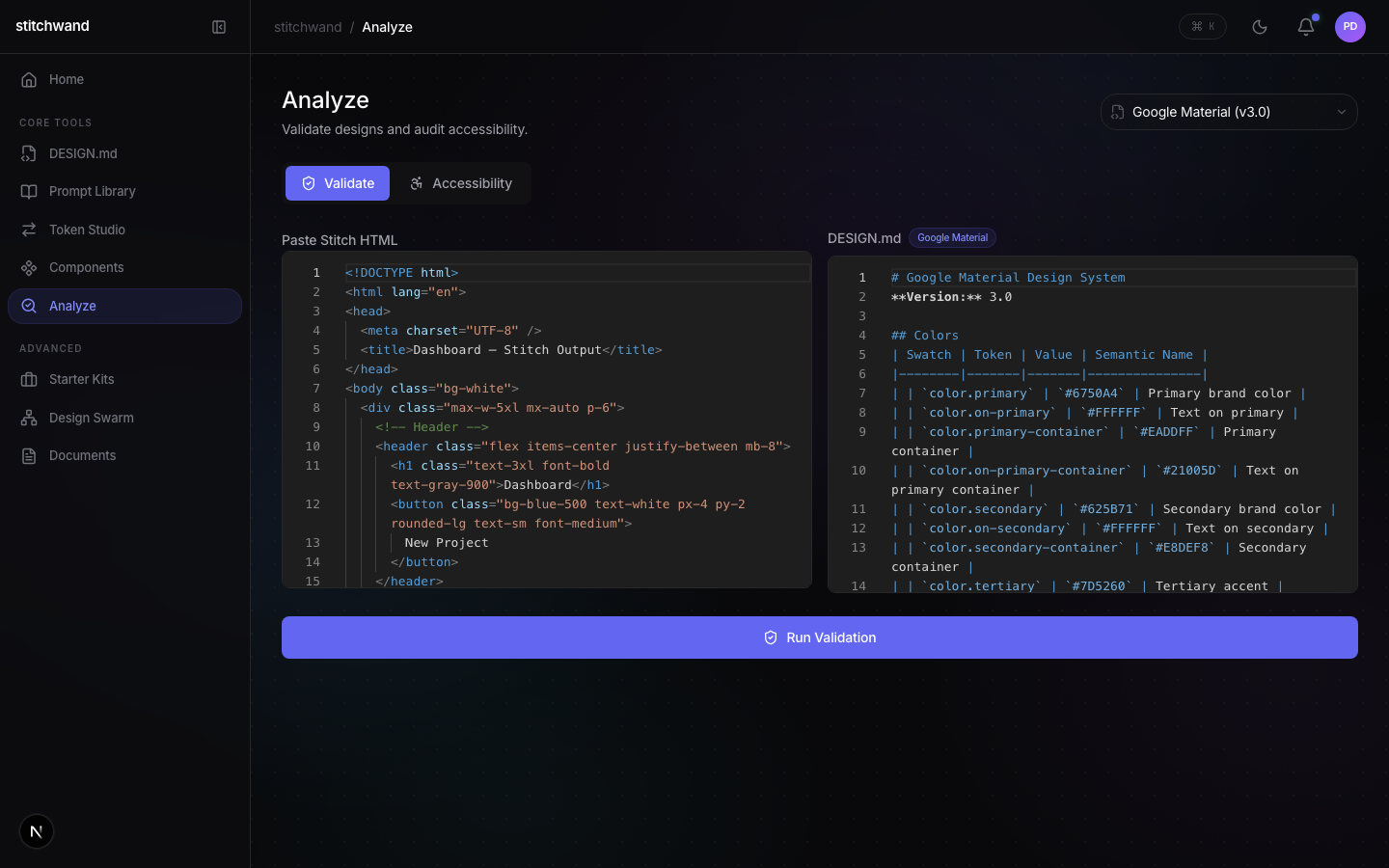
Validate with 50+ rules, diff between versions, lint for naming issues, and audit for accessibility. Four power tools in one page.

Analysis Dashboard
Analysis Dashboard

Presenter Scripts

Talking points for each analysis tool

Validate
2-3 min
0:00 [Open Analyze page. Select Validate tab.]
0:05 "50+ validation rules across 8 categories: naming, format, references, duplicates, contrast, sizing, completeness, and custom rules."
0:15 [Paste or load a DESIGN.md file. Click validate. Show results populating with pass/fail/warn badges.]
0:20 "Load your DESIGN.md and run validation. Green means Stitch will read it cleanly. Red means something will break."
0:55 [Scroll through results. Point out a failing rule and its fix suggestion.]
1:00 "Every violation has a severity, a path, and a fix suggestion. Click to see the exact token that needs attention."
1:30 [Fix the issue and re-validate to show green.]
1:35 "Fix, re-validate, green. Ship with confidence."
Diff
~2 min
0:00 [Switch to Diff tab. Load two versions of a design system.]
0:05 "Diff compares two versions of your tokens at the token level, not the text level."
0:15 [Show additions, removals, modifications highlighted with color-coded badges.]
0:20 "Every addition, removal, and modification highlighted. For color tokens, we use perceptual color distance (CIEDE2000) so you see how visually different the change actually is."
0:55 "See exactly what changed between versions. No more guessing what a design system update will break."
Lint & Accessibility
~2 min
0:00 [Switch to Lint tab. Show naming convention warnings.]
0:05 "Lint catches style issues: inconsistent naming, missing aliases, format violations, semantic problems."
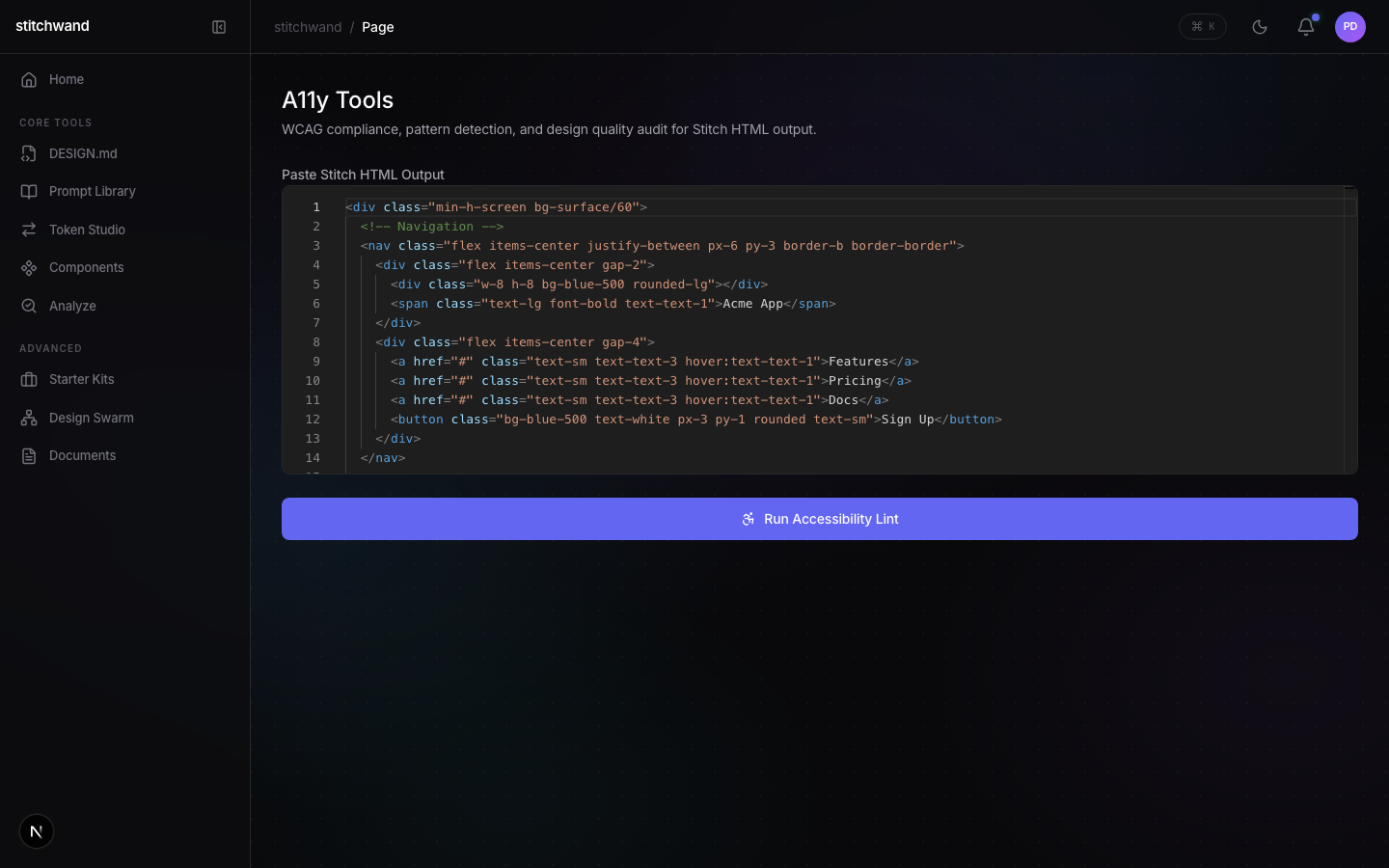
0:25 [Switch to A11y tab. Run accessibility audit. Show contrast ratio checks, font sizing, touch targets.]
0:30 "The accessibility audit flags contrast problems, font sizing issues, and touch target violations. WCAG compliance built in."
1:00 "All four tools work together. Diff to spot changes, validate to check quality, lint to enforce style, a11y to ensure accessibility."
CLI Analysis
~90s · Developer
0:00 [Terminal open. Clean prompt.]
0:05 "Every analysis tool runs in the terminal too. Same engine, headless."
0:10 [Type: npx stitchwand validate DESIGN.md. Show pass/fail/warn output.]
0:30 [Type: npx stitchwand diff v1.md v2.md. Show additions/removals/changes.]
0:50 [Type: npx stitchwand lint DESIGN.md. Show naming issues.]
1:00 "Pipe it into CI. Gate your pull requests on design token quality. Never ship broken tokens again."

Live Demo Guide

Step-by-step presenter cards for Analysis demos

1

Validate Your Tokens ~2 min

What to say

Validation checks your tokens against 50+ rules in 8 categories: naming, format, references, duplicates, contrast, sizing, completeness, and custom. Green means Stitch will read it cleanly. Red means something will break. Every violation has a severity and a fix suggestion.

What to show
  • Navigate to the Analyze page and select the Validate tab
  • Load or paste a DESIGN.md file and run validation
  • Show pass/fail/warn results populating with badges
  • Click a failing rule to show the path, severity, and fix suggestion
  • Fix the issue and re-validate to show green
Validate
2

Diff Two Versions ~90s

What to say

Load two versions of your design system and diff them at the token level. Every addition, removal, and modification is highlighted. For color changes, we calculate the perceptual distance so you know how visually impactful each change is.

What to show
  • Switch to the Diff tab
  • Load two versions of a design system
  • Show additions (green), removals (red), and modifications highlighted
  • Point out the perceptual color distance on color token changes
Diff
3

Lint & Accessibility ~90s

What to say

Lint catches style issues: inconsistent naming, missing aliases, format violations. The accessibility audit flags WCAG contrast problems, font sizing below minimum, and touch target violations. Together, they cover every quality dimension of your design system.

What to show
  • Switch to the Lint tab and show naming convention warnings
  • Switch to the A11y tab and run the accessibility audit
  • Show contrast ratio failures with specific values
  • Demonstrate the connection: fix lint issues, re-run, see improvements
Lint and Accessibility
4

CI Integration ~60s

What to say

Everything you just saw runs headless in the CLI. Pipe validate, diff, and lint into your CI pipeline. Gate pull requests on design token quality. Never ship broken tokens again.

What to show
  • Open a terminal and run: npx stitchwand validate DESIGN.md
  • Show the pass/fail output
  • Show an example GitHub Actions workflow that gates PRs
  • Demonstrate the MCP integration: ask Claude Code to validate
CI Integration

Ship with confidence

50+ rules catch issues before they reach production.

Open Analysis

Video Gallery

65+ videos across 6 categories — product demos, tutorials, marketing, social, events, and labs. Every video has a full script with timing, visual cues, and action buttons.

Product Demos

Feature walkthroughs and end-to-end demonstrations

90-Second Sizzle Reel
1:30 · No Narration
Fast-cut, music-driven montage showcasing every major feature of stitchwand — from CLI to web app, Starter Kits to Design Swarm. No voiceover; let the product speak for itself.
0:00 [Black screen. Beat drops. Stitch Wand logo animates in — wand trails sparks across the screen.]
0:03 [Quick cut: terminal prompt. `npx stitchwand convert design.md --to figma-tokens` executes. Output streams in green.]
0:06 [Cut: `npx stitchwand validate tokens.json` — validation results appear with checkmarks and warnings.]
0:09 [Cut: `npx stitchwand diff v1.json v2.json` — color-coded diff output scrolls.]
0:12 [Cut: `npx stitchwand lint tokens.json` — lint violations listed with severity icons.]
0:15 [Smash cut to web app. Home dashboard loads — activity graph fills with green tiles across a 3-month range.]
0:19 [Camera zooms into activity graph. Mouse hovers tiles — tooltips show prompt counts per day.]
0:22 [Cut: DESIGN.md editor. A design system file is open. User edits color tokens — live preview updates on the right.]
0:26 [Cut: Prompt Library grid. Scrolling through 50+ prompt templates. User clicks one — detail drawer slides in from right.]
0:30 [Cut: Token Studio. Color palette visualization with swatches. User toggles between convert, visualize, and export tabs.]
0:34 [Cut: Components view. Component cards with usage stats. User clicks into a component — analyzeComponent() output renders.]
0:37 [Cut: Analyze section. Four tabs — validate, diff, lint, a11y. User runs validation — results cascade in with green/yellow/red indicators.]
0:41 [Music intensifies. Cut: Starter Kits. Grid of 99 brand libraries — Twitch purple, Discord blurple, Netflix red cards visible.]
0:45 [User presses 'v' — animated demo fill triggers. Sparkle effects cascade across the 5-step wizard as fields auto-populate.]
0:50 [Cut: Design Swarm. Four AI agent panels appear — Color, Typography, Spacing, Components. All four activate simultaneously.]
0:55 [Agents stream output in parallel. Color agent picks a palette. Typography agent selects font scales. Spacing agent defines a grid. Components agent assembles tokens.]
1:00 [Cut: Documents panel. 12 document type cards fan out. User generates a Style Guide — pages render in real time.]
1:04 [Cut: Labs section rapid montage — Console, Figma Bridge, MCP Playground, Brand Studio, Game Studio flash by in 1-second cuts.]
1:09 [Cut: Live Changelog, Agent Hub, Design-to-Test — each for half a second.]
1:11 [Cut: Free/Pro toggle. Lock icons appear on Pro features. User upgrades — locks dissolve with sparkle animation.]
1:15 [Cut: MCP server in Claude Code. User types a prompt. Tool calls fire — convert_tokens, validate_tokens results stream in.]
1:19 [Rapid final montage: CLI output, web dashboard, swarm agents, starter kit sparkles — 0.5s each, tempo increasing.]
1:24 [All cuts converge into the stitchwand logo. Tagline fades in: “Design tokens, tamed.”]
1:27 [URL appears below logo: stitchwand.com. Pricing tiers fade in: Free · Pro $19/mo · Team $49/mo · Enterprise.]
1:30 [Fade to black.]
stitchwand in 3 Minutes
3:00 · Narrated Overview
Concise narrated walkthrough of stitchwand’s four pillars: CLI toolchain, web application, MCP integration, and the DESIGN.md ecosystem. Perfect for landing pages and social sharing.
0:00 [stitchwand logo on dark background. Subtle particle animation.]
0:03 “Design tokens are the bridge between design and code — but managing them across tools, formats, and teams? That’s where things break down.”
0:10 [Split screen: Figma on left, VS Code on right, tokens scattered between them. Visual showing fragmentation.]
0:12 “stitchwand is a design token toolchain built for Google Stitch and the DESIGN.md ecosystem. It works across four surfaces — and they all share a single core engine.”
0:20 [Four pillars animate in: CLI, Web App, MCP Server, DESIGN.md. Lines connect them to a central “@stitchwand/core” node.]
0:23 “Let’s start with the CLI. Install it with npx — no setup required.”
0:26 [Terminal opens. `npx stitchwand convert design.md --to figma-tokens` runs.]
0:28 “Convert tokens between any format. Validate them against the spec. Diff two versions to see what changed. Lint for anti-patterns. Analyze components for token coverage.”
0:37 [Quick sequence: validate, diff, lint, component commands each execute with results.]
0:40 “Five core functions — convert, validate, diff, lint, and analyzeComponent — power everything.”
0:45 [Transition: terminal morphs into the web app dashboard.]
0:47 “The web app gives you a visual layer on top of the same engine. Your Home dashboard shows an activity graph tracking every prompt and analytics event.”
0:53 [Home dashboard with activity graph — green tiles filling a calendar view. Mouse switches between 2W, 1M, 3M, 6M, 1Y time ranges.]
0:57 “The DESIGN.md editor lets you author and edit your design system file directly in the browser — with live preview.”
1:02 [DESIGN.md editor with split pane — markdown on left, rendered preview on right. User types; preview updates live.]
1:06 “The Prompt Library has over 50 templates for common design token tasks — ready to use with any AI assistant.”
1:11 [Prompt Library grid. Cards with categories. User clicks one — detail drawer opens showing the full prompt.]
1:14 “Token Studio is where you convert, visualize, and export tokens with a full graphical interface.”
1:18 [Token Studio: color palette visualization, typography scale preview, spacing grid view.]
1:21 “The Analyze section runs validate, diff, lint, and accessibility checks — all in one place.”
1:25 [Analyze view: four tabs showing results. Validation passes. Lint catches two warnings.]
1:28 “Now here’s where it gets interesting. With a Pro subscription, you unlock Starter Kits — 99 real-world design token libraries from brands like Twitch, Discord, and Netflix.”
1:35 [Starter Kits grid loads. Brand cards with logos. User presses 'v' — animated demo fill triggers with sparkle effects across the 5-step wizard.]
1:40 “Design Swarm is a multi-agent system. Four AI agents — Color, Typography, Spacing, and Components — work in parallel to generate a complete token set.”
1:48 [Design Swarm: four agent panels activate. Streaming output in each. Progress bars advance. Agents reference 80+ anti-pattern constraints.]
1:53 “The swarm knows over 80 named anti-patterns and applies them as soft constraints — so you get production-quality output from the start.”
1:59 [Anti-pattern list scrolls briefly. Generated tokens appear in a unified output panel.]
2:02 “Documents lets you generate 12 different document types — style guides, token specs, migration plans, and more.”
2:07 [Documents panel: 12 document type cards. User selects Style Guide — generation begins, pages render progressively.]
2:11 “And for AI-native workflows, the MCP server exposes six tools that work directly inside Claude Code, Cursor, and Windsurf.”
2:17 [Split screen: Claude Code on left, Cursor on right. Both show MCP tool calls returning token data.]
2:21 “Your AI assistant can convert, validate, diff, and lint tokens without ever leaving the editor.”
2:26 [Claude Code: natural language prompt triggers convert_tokens tool. Formatted output appears inline.]
2:29 “Plus, Labs gives you experimental tools — Figma Bridge, MCP Playground, Brand Studio, Game Studio, and more — all in preview.”
2:35 [Labs section: quick montage of Console, Figma Bridge, MCP Playground, Brand Studio, Game Studio, Live Changelog, Agent Hub, Design-to-Test.]
2:39 “stitchwand is free to start. Pro is nineteen dollars a month. Team is forty-nine. And Enterprise is custom.”
2:44 [Pricing cards animate in: Free, Pro $19/mo, Team $49/mo, Enterprise.]
2:47 “One engine. Four surfaces. Every token format. That’s stitchwand.”
2:52 [Final montage: CLI, web app, MCP, DESIGN.md — each in a quadrant. They merge into the stitchwand logo.]
2:56 [Logo centered. stitchwand.com below. “Get started free” button pulses.]
3:00 [Fade to black.]
Complete Product Walkthrough
10:00 · Full Walkthrough
Comprehensive deep dive into every feature of stitchwand — CLI, web app, Starter Kits, Design Swarm, Documents, Labs, MCP integration, and the DESIGN.md ecosystem. The definitive product tour.
0:00 [Title card: “stitchwand — Complete Product Walkthrough” on dark background with subtle wand animation.]
0:04 “Welcome to the complete stitchwand walkthrough. Over the next ten minutes, we’ll cover every feature — from the CLI to the web app to MCP integration. Let’s dive in.”
0:13 [Section title card: “Part 1 — The Core Engine”]
0:15 “At the heart of stitchwand is @stitchwand/core — a TypeScript library that exports five functions: convert, validate, diff, lint, and analyzeComponent. Every surface — CLI, web app, MCP server — is a thin wrapper around this core.”
0:27 [Architecture diagram: @stitchwand/core at center, arrows radiating out to CLI, Web App, MCP Server. Key types listed: DesignToken, TokenCollection, DesignSystem, ValidationResult, Violation, DiffResult, TokenChange.]
0:30 “This means you get identical results whether you’re in a terminal, a browser, or an AI coding assistant. Same engine, same output, every time.”
0:37 [Triple split screen showing same operation in CLI, web app, and Claude Code — all producing identical results.]
0:41 [Section title card: “Part 2 — CLI”]
0:43 “The CLI requires zero installation. Just run npx stitchwand followed by any command.”
0:48 [Terminal: `npx stitchwand --help` shows available commands: convert, validate, diff, lint, component.]
0:50 “Convert transforms tokens between formats. Validate checks against the spec. Diff shows changes. Lint catches anti-patterns. Component analyzes token coverage.”
1:03 [Quick sequence: each CLI command runs with sample output. Convert shows JSON, Validate shows errors/warnings, Diff shows color-coded changes, Lint shows violations, Component shows coverage report.]
1:32 [Section title card: “Part 3 — Web App”]
1:34 “The web app has over 20 screens accessible from the sidebar navigation. Let’s start at Home.”
1:39 [Web app loads. Sidebar visible with full navigation. Home dashboard is active.]
1:41 “The Home dashboard features an activity graph that auto-seeds with 500 prompt entries and 200 analytics events. View it across five time ranges — two weeks, one month, three months, six months, or a full year.”
1:52 [Activity graph with green calendar tiles. Mouse clicks through 2W, 1M, 3M, 6M, 1Y. Hover a tile — tooltip shows counts. Click — history drawer slides in.]
2:00 “The DESIGN.md editor, Prompt Library, Token Studio, Components, and Analyze are all free. They cover editing, 50-plus prompt templates, conversion and visualization, component analysis, and unified validation.”
2:15 [Quick click-through of each free feature: DESIGN.md editor split pane, Prompt Library grid, Token Studio tabs, Components cards, Analyze four-tab view.]
2:30 “Pro unlocks three power features. Starter Kits — 99 brand libraries with the animated demo fill. Design Swarm — four AI agents generating tokens in parallel. And Documents — 12 document types generated from your real token data.”
2:45 [Quick tour: Starter Kits grid with 'v' shortcut sparkles, Design Swarm 2x2 agent panels streaming, Documents grid with Style Guide rendering.]
3:00 “Labs has eight experimental tools: Console, Figma Bridge, MCP Playground, Brand Studio, Game Studio, Live Changelog, Agent Hub, and Design-to-Test.”
3:10 [Labs section: rapid click-through of all 8 tools.]
3:20 [Section title card: “Part 4 — MCP Integration”]
3:22 “The MCP server exposes six tools for any compatible AI client — Claude Code, Cursor, Windsurf. Natural language in, structured token data out.”
3:32 [Claude Code: user prompts for conversion. convert_tokens tool fires. CSS output appears. Then validate, diff, lint each demonstrated.]
4:00 [Section title card: “Part 5 — Starter Kits Deep Dive”]
4:02 “Ninety-nine real-world design token libraries. Select a brand, walk the 5-step wizard — or press 'v' for the animated demo fill with sparkle effects.”
4:12 [Twitch kit selected. Wizard steps: Select Brand, Choose Categories, Customize Values, Preview, Export. 'v' shortcut fills all fields with purple sparkle cascade.]
4:40 [Section title card: “Part 6 — Design Swarm Deep Dive”]
4:42 “Four specialized agents — Color, Typography, Spacing, Components — generate tokens simultaneously from a brief. Over 80 anti-patterns enforced as soft constraints.”
4:52 [Brief entered. All four agents stream output. Constraint sidebar shows anti-pattern checks passing. Merge animation creates unified DESIGN.md.]
5:30 [Section title card: “Part 7 — Documents & DESIGN.md”]
5:32 “Documents generates 12 types — style guides, specs, migration plans, audit reports. All grounded in your real tokens, exportable as Markdown, PDF, or HTML.”
5:42 [Style Guide generated with color swatches, type specimens, spacing blocks. PDF exported.]
5:55 “DESIGN.md is the heart of the ecosystem — human-readable, machine-parseable, version-controllable. The editor gives you live preview, inline validation, import from any format, and export to seven targets.”
6:10 [DESIGN.md editor: live color swatch preview, inline error on invalid value, import from Figma Tokens JSON, export format selector.]
6:40 [Section title card: “Part 8 — Activity Graph & Prompt Management”]
6:42 “The activity graph auto-seeds with 700 entries. Five time ranges from two weeks to one year. The history drawer shows every operation chronologically — filterable and searchable.”
6:55 [Activity graph with all 5 time ranges. History drawer opens with filter dropdown and search bar. Entries expand to show full details.]
7:10 “The Prompt Library detail drawer shows full templates, metadata, and a usage timeline. Export your history as JSON or CSV. Create custom prompts.”
7:22 [Prompt detail drawer with timeline dots. Export dropdown. New Prompt creation form.]
7:40 [Section title card: “Part 9 — Free vs Pro”]
7:42 “Free gives you the full core — Home, DESIGN.md, Prompt Library, Token Studio, Components, Analyze. Pro adds Starter Kits, Design Swarm, and Documents at nineteen dollars a month.”
7:55 [Sidebar showing lock icons on Pro features. Click locked feature — blurred overlay with upgrade prompt. Click upgrade — locks dissolve with sparkle animation.]
8:10 “Team at forty-nine adds collaboration features. Enterprise is custom.”
8:15 [Pricing cards: Free, Pro $19/mo, Team $49/mo, Enterprise.]
8:20 [Section title card: “Wrap Up”]
8:22 “One core engine. Four surfaces. Five functions — convert, validate, diff, lint, analyzeComponent. Twenty-plus web app screens. Ninety-nine starter kits. Four AI agents. Twelve document types. Eight labs tools.”
8:38 [Stats animate in sequence with the numbers. Feature grid with checkmarks by tier.]
8:42 “Built for Google Stitch. Built for the DESIGN.md ecosystem. Get started free at stitchwand.com. Thanks for watching.”
8:50 [stitchwand logo. URL: stitchwand.com. “Get started free” CTA. Fade to black at 10:00.]
CLI Demo
2:00 · Developer
Terminal-focused demo of the stitchwand CLI — install, convert, validate, diff, lint, and component analysis. Zero configuration, instant results.
0:00 [Clean terminal with dark theme. Cursor blinking. Title overlay: “stitchwand CLI Demo”.]
0:03 “The stitchwand CLI runs with npx — no global install needed. Let’s walk through all five commands.”
0:08 [User types: `npx stitchwand --help`. Help output displays showing commands: convert, validate, diff, lint, component.]
0:11 “First, convert. We’ll transform a DESIGN.md file into Figma Tokens format.”
0:15 [User types: `npx stitchwand convert design.md --to figma-tokens`. Command executes. JSON output streams — token groups for colors, typography, spacing.]
0:20 “Clean JSON output, properly structured, ready to import into Figma or any token consumer.”
0:24 [Output highlights key token groups. Brief pause on the result.]
0:26 “Next, validate. This checks your tokens against the design token specification.”
0:30 [User types: `npx stitchwand validate tokens.json`. Results: “47 tokens valid. 2 errors: missing $type on color.brand.primary, invalid $value on spacing.xl. 1 warning: deprecated alias format.”]
0:36 “Two errors and a warning — with exact locations and descriptions. Fix and re-run.”
0:42 “Diff compares two token files. Let’s see what changed between versions.”
0:46 [User types: `npx stitchwand diff v1.json v2.json`. Color-coded output: green additions, yellow modifications, red removals. Summary: “3 added, 1 modified, 1 removed.”]
0:55 “Additions in green, modifications in yellow, removals in red. Every change tracked.”
1:01 “Lint catches design token anti-patterns. The engine knows over 80 named patterns.”
1:06 [User types: `npx stitchwand lint tokens.json`. Output: “hardcoded-value (line 23), orphan-token (line 41), contrast-too-low: ratio 3.2:1, minimum 4.5:1 (line 15).”]
1:16 “Hardcoded values, orphan tokens, contrast issues — all caught automatically with the specific anti-pattern name and line number.”
1:24 “Finally, component analysis. Let’s check how well a Button component uses our tokens.”
1:29 [User types: `npx stitchwand component Button --tokens tokens.json`. Output: “Coverage: 78%. Using 6 tokens. Missing 4: hover, active, icon gap, elevation. Suggestions: Add interactive state tokens, consider focus-ring for a11y.”]
1:40 “Seventy-eight percent coverage. Six tokens in use, four missing — with specific suggestions for improvement.”
1:48 “Five commands, zero configuration, instant results. That’s the stitchwand CLI.”
1:53 [Terminal clears. stitchwand logo appears. URL: stitchwand.com.]
2:00 [Fade to black.]
Web App Tour
3:30 · Walkthrough
Guided tour through all 20+ screens of the stitchwand web app — from the Home dashboard and activity graph through every tool in the sidebar navigation.
0:00 [Browser opens to stitchwand web app. Loading animation resolves into the Home dashboard.]
0:03 “This is the stitchwand web app. Over 20 screens, all accessible from the sidebar. Let’s tour every section.”
0:09 [Full sidebar visible: Home, DESIGN.md, Prompt Library, Token Studio, Components, Analyze, Starter Kits (Pro), Design Swarm (Pro), Documents (Pro), Labs.]
0:11 “Home is your command center. The activity graph auto-seeds with 500 prompt entries and 200 analytics events — it’s never empty.”
0:19 [Activity graph with green calendar tiles. Switch time ranges: 2W, 1M, 3M, 6M, 1Y. Click tile — history drawer opens.]
0:33 “DESIGN.md editor — markdown on the left, live preview on the right. Import and export in multiple formats.”
0:43 [DESIGN.md editor split pane. User types a color token — swatch appears in preview.]
0:50 “Prompt Library — over 50 templates. Filter by category, search by keyword, open the detail drawer for any prompt.”
0:57 [Prompt Library grid. Filter to “Migration”. Click card — drawer slides in with full prompt, metadata, usage timeline.]
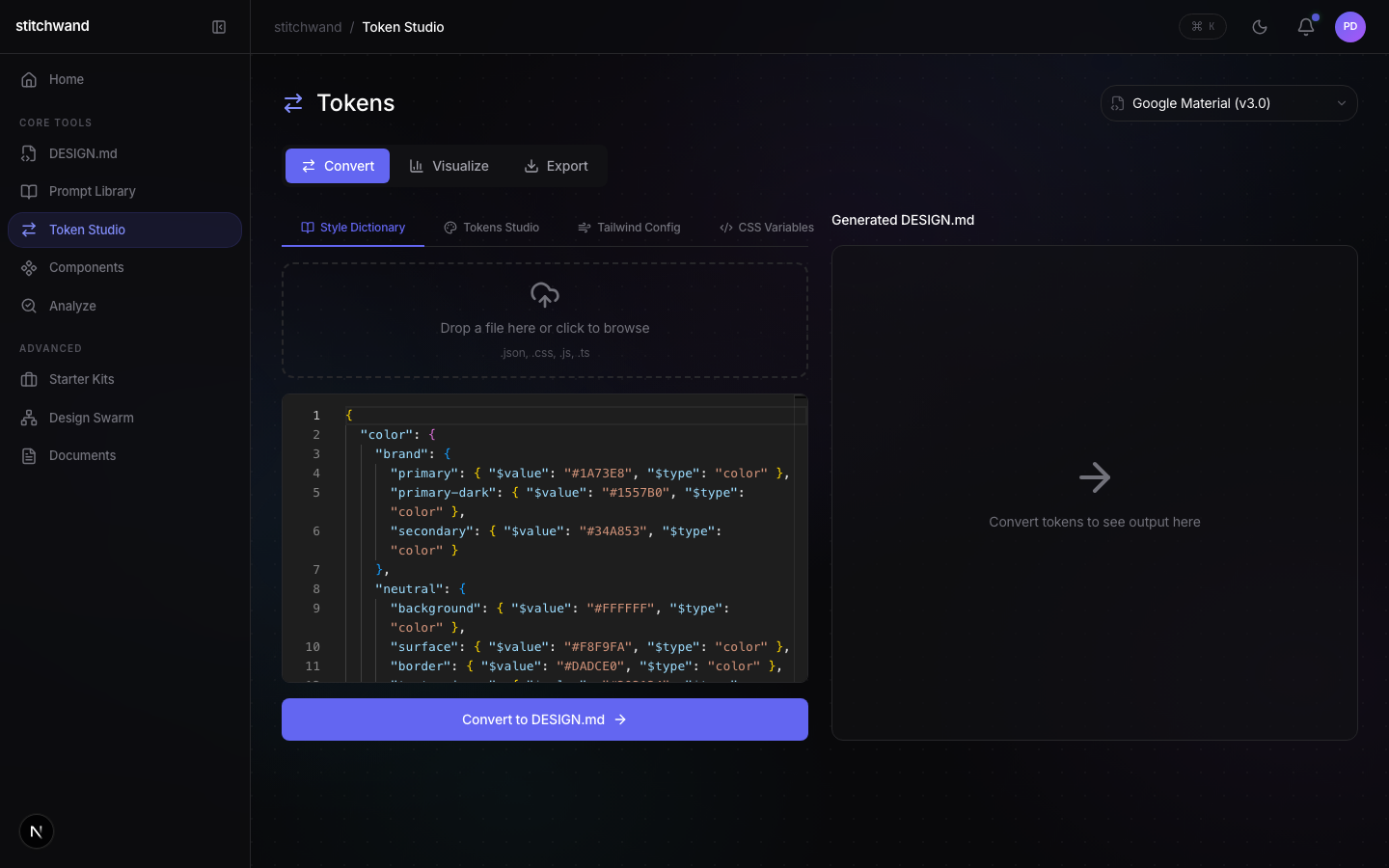
1:10 “Token Studio — convert, visualize, and export. Three tabs, one interface.”
1:17 [Token Studio: Convert tab with JSON input, Visualize tab with color swatches and type scale, Export tab with format selector.]
1:27 “Components — every component mapped to its tokens with coverage percentages.”
1:32 [Component cards: Button 78%, Input 85%, Card 92%. Click Button — detail view with token list and coverage donut.]
1:40 “Analyze — validate, diff, lint, and accessibility in four tabs. Run all at once for a complete health report.”
1:45 [Analyze four-tab view. Click “Run All” — all panels populate. Summary: 2 errors, 3 warnings, 1 a11y issue.]
1:55 “Now the Pro features. Starter Kits — 99 brand libraries.”
1:59 [Starter Kits grid with 99 brand cards. Click Discord — 5-step wizard opens.]
2:08 “Design Swarm — four AI agents in parallel.”
2:12 [Design Swarm 2x2 grid. Brief input field. Start button.]
2:18 “Documents — 12 document types from your token data.”
2:24 [Documents grid: Style Guide, Token Specification, Migration Plan, Audit Report, and 8 more.]
2:32 “And Labs — eight experimental tools.”
2:38 [Labs submenu: Console, Figma Bridge, MCP Playground, Brand Studio, Game Studio, Live Changelog, Agent Hub, Design-to-Test. Quick click-through of each.]
3:04 “Twenty-plus screens. One sidebar. Every tool you need for design tokens.”
3:09 [Full sidebar highlights each section in sequence.]
3:12 “Free to start. Pro for power features. Visit stitchwand.com.”
3:16 [stitchwand logo. URL: stitchwand.com. Pricing tiers. Fade to black.]
Starter Kits Demo
2:00 · Pro Feature
Deep dive into Starter Kits — 99 real-world design token libraries from brands like Twitch, Discord, and Netflix. Featuring the animated demo fill (‘v’ shortcut) with sparkle effects and the 5-step wizard.
0:00 [Web app with Starter Kits selected. Pro badge glows. Grid begins loading.]
0:03 “Starter Kits gives you 99 design token libraries extracted from real-world brands. Let’s explore.”
0:08 [Grid loaded: 99 brand cards. Twitch (purple), Discord (blurple), Netflix (red), Spotify (green), Stripe, GitHub, Slack, Linear, Notion, Figma, Vercel, Tailwind visible.]
0:11 “Every card represents a complete DESIGN.md file — color palette, typography scale, spacing system, and component tokens — all based on each brand’s public design system.”
0:19 [Hover cards — tooltips show key colors and fonts. Twitch: #9146FF. Discord: #5865F2. Netflix: #E50914.]
0:23 “Let’s select Twitch and walk through the 5-step wizard.”
0:26 [Click Twitch. Wizard: Step 1 Select Brand, Step 2 Choose Categories (checkboxes), Step 3 Customize Values (editable fields), Step 4 Preview (rendered tokens), Step 5 Export (format picker).]
0:46 “Step four previews the token set. Step five exports in your format. But here’s the fun part — press ‘v’ for the animated demo fill.”
0:54 [Navigate back to Step 1. Press ‘v’. Sparkle cascade: brand auto-selects, categories toggle on, fields fill with sparkle trails, preview renders with wave animation, export button glows.]
1:05 “Watch the sparkle effects cascade through every step. Each field auto-populates with the brand’s actual token values.”
1:22 “In under twenty seconds, zero to a complete, production-ready design token set.”
1:29 [Quick montage: ‘v’ shortcut with Discord (blurple sparkles), Netflix (red sparkles), Spotify (green sparkles). 3 seconds each.]
1:38 “It works with every kit. Ninety-nine brands, each with its own sparkle color.”
1:47 “Starter Kits. Available with stitchwand Pro — nineteen dollars a month.”
1:52 [Pro badge, $19/mo. stitchwand logo. URL: stitchwand.com.]
2:00 [Fade to black.]
Design Swarm Demo
2:30 · Pro Feature
Multi-agent AI design token generation in action. Four specialized agents — Color, Typography, Spacing, and Components — work in parallel, enforcing 80+ anti-pattern constraints.
0:00 [Design Swarm page. Pro badge. Four agent panels in 2x2 grid. Brief input field at top.]
0:03 “Design Swarm uses four AI agents working in parallel to generate a complete design token system from a single brief.”
0:09 [Panels labeled: Color Agent (purple), Typography Agent (blue), Spacing Agent (green), Components Agent (orange).]
0:12 “Each agent specializes. Color handles palettes. Typography picks font stacks and scales. Spacing defines grids. Components assembles everything into component-level tokens.”
0:25 “Let’s say: ‘Modern healthcare app. Calming, trustworthy. Light mode primary with dark mode support.’”
0:32 [User types brief. Clicks Start. All four panels light up — borders glow, streaming text begins simultaneously.]
0:40 “Color agent builds a soothing blue-teal palette. Typography selects clean sans-serif with proper hierarchy. Spacing defines an 8-point grid. Components assembles button, input, card, and modal tokens.”
0:47 [Close-up of each panel: Color shows hex swatches, Typography shows rem scale, Spacing shows pixel values, Components shows token aliases referencing the other agents.]
1:08 “While they work, the swarm checks every decision against over 80 named anti-patterns — soft constraints that ensure production quality.”
1:15 [Constraint sidebar: “contrast-ratio-aa: passed”, “naming-consistency: passed”, “dark-mode-coverage: 2 tokens need values — auto-fixing...”]
1:25 “See that warning? The swarm caught missing dark mode variants and is auto-fixing them.”
1:32 [Warning updates to green checkmark: “dark-mode-coverage: resolved.”]
1:38 “All four agents finishing up. Now watch the merge.”
1:41 [Merge animation: tokens flow from four panels into a central output panel. Complete DESIGN.md appears.]
1:49 “The unified output — a single DESIGN.md file. Review every token, make edits, then export.”
1:55 [Output panel with Colors, Typography, Spacing, Components sections. Edit buttons. Export dropdown: DESIGN.md, JSON, CSS, Figma Tokens.]
2:01 “From a one-sentence brief to a complete, validated, production-ready token system.”
2:07 [Stats: “4 agents. 80+ constraints. 127 tokens. 0 anti-patterns.”]
2:20 “Design Swarm. Available with stitchwand Pro.”
2:23 [Pro badge, $19/mo. stitchwand logo. URL: stitchwand.com.]
2:30 [Fade to black.]
Activity Graph & History Drawer
2:30 · Feature Deep Dive
Detailed look at the Home dashboard activity graph — auto-seeded data, 5 time ranges, calendar-tile view, and the history drawer for browsing every prompt and analytics event.
0:00 [Home dashboard. Activity graph with green calendar tiles.]
0:03 “The activity graph is the first thing you see. It tracks every design token operation — prompts, conversions, validations, lint runs — all visualized over time.”
0:12 [Wide shot of graph. Calendar tiles in varying green intensities. Stats: “723 total activities”.]
0:15 “The graph auto-seeds with 500 prompt entries and 200 analytics events — no blank-dashboard problem.”
0:25 “Five time ranges. Two weeks shows detailed calendar tiles. One month, same layout, more days.”
0:28 [Click 2W — 14-day grid. Click 1M — ~30 tiles. Hover tile: “Tuesday, Apr 14: 12 prompts, 3 conversions, 2 validations”.]
0:39 “Three months shifts to a GitHub-style contribution grid. Six months shows half-year patterns. One year — the full picture.”
0:42 [Click 3M — row-based grid. Click 6M — ~180 tiles with visible clusters. Click 1Y — 365 tiles.]
1:01 “Hover any tile for the breakdown. Click to open the history drawer.”
1:05 [Back to 1M. Hover dark tile: “Friday, Apr 10: 18 prompts, 5 conversions, 4 validations, 2 lint runs”. Click it.]
1:12 [History drawer slides in. Header: “April 10, 2026 — 29 activities”. Chronological list.]
1:16 “The history drawer shows every activity in chronological order — prompts, conversions, validations, lint runs, diffs.”
1:22 [Entries: “9:14 AM — Prompt: Generate color palette”, “9:22 AM — Convert: DESIGN.md → Figma Tokens”, “9:31 AM — Validate: 2 errors, 1 warning”.]
1:35 “Click any entry for full details. Filter by activity type. Search by keyword.”
1:40 [Click prompt entry — expands. Filter dropdown: All, Prompts, Conversions, Validations, Lint, Diff. Search bar: type “color” — list filters.]
2:01 “Every action tracked. Complete design token history — always accessible, always searchable.”
2:12 “The activity graph. Five time ranges. A complete history drawer. All on your Home dashboard.”
2:18 [Time range buttons pulse. stitchwand logo. URL: stitchwand.com.]
2:25 [Fade to black.]
Prompt Detail Drawer & Timeline
2:30 · Feature Deep Dive
Managing prompts in stitchwand — the Prompt Library, detail drawer with full template view, usage timeline, and export options.
0:00 [Prompt Library selected. Grid of 50+ prompt cards loading.]
0:03 “The Prompt Library — over 50 design token prompt templates, organized, searchable, ready for any AI assistant.”
0:10 [Cards with titles, category badges, descriptions, usage counts. Categories: Generation, Migration, Audit, Documentation, Analysis, Conversion, Accessibility.]
0:13 “Filter by category or search by keyword.”
0:17 [Select “Generation”. Grid filters to ~12 cards. Type “palette” — 3 cards remain.]
0:25 “Let’s open ‘Generate Color Palette’.”
0:27 [Click card. Detail drawer slides in. Header: title + category badge. Full prompt text in formatted block.]
0:30 “The detail drawer shows the complete prompt template — structured instructions for generating a full color palette with primary, secondary, neutral, and semantic scales.”
0:43 “One click to copy. Below the text — metadata: created, last modified, author, estimated token count.”
0:46 [Click Copy — “Copied!” toast. Metadata: “Created: Mar 12. Modified: Apr 8. Tokens: ~450.”]
0:59 “Scroll down to the usage timeline. Every use tracked with date and context.”
1:02 [Timeline with dots. Hover: “Apr 3 — Token Studio conversion”, “Apr 7 — Design Swarm brief”, “Apr 12 — Copied”. Summary: “8 uses in 30 days”.]
1:23 “Let’s look at ‘Audit Token Coverage’ — different category, different structure.”
1:27 [Close drawer. Click “Audit Token Coverage”. New drawer with structured audit instructions.]
1:42 “Export your prompt history as JSON or CSV. JSON includes full text, metadata, and usage timeline.”
1:48 [Export button dropdown: Export All (JSON), Export All (CSV), Export Filtered (JSON/CSV). Click JSON — download starts.]
2:02 “Create custom prompts with the ‘New Prompt’ button. They appear alongside built-in templates with a ‘Custom’ badge.”
2:08 [New Prompt form: Title, Category dropdown, Prompt text area, Tags. Save — card appears with “Custom” badge.]
2:20 “Over 50 templates. Detail drawers. Usage timelines. JSON/CSV export. That’s the Prompt Library.”
2:26 [Full grid view. stitchwand logo. URL: stitchwand.com.]
2:30 [Fade to black.]
Free/Pro Tier Gating Demo
1:30 · Feature Overview
How stitchwand’s freemium model works — Free vs Pro feature access, lock icons, Pro badges, tier switching, and the upgrade experience.
0:00 [Sidebar in focus. Free tier active.]
0:03 “stitchwand uses a freemium model. Let’s see what you get at each tier.”
0:07 [Sidebar: Free items (Home, DESIGN.md, Prompt Library, Token Studio, Components, Analyze) unlocked. Pro items (Starter Kits, Design Swarm, Documents) show lock icons + “Pro” badges.]
0:09 “Free gives you the full core — Home, DESIGN.md editor, Prompt Library, Token Studio, Components, and Analyze.”
0:20 [Click through each free feature — all fully functional.]
0:24 “Pro features show a lock icon and ‘Pro’ badge. Click one on Free tier.”
0:29 [Click Starter Kits. Blurred overlay with upgrade card: “Unlock Starter Kits with Pro — $19/mo.”]
0:31 “Content visible but blurred — you can see what you’re missing. Same for Design Swarm and Documents.”
0:41 [Quick: Design Swarm blurred, Documents blurred.]
0:50 “Click Upgrade. Select Pro. Watch the locks dissolve.”
0:54 [Tier modal: Free, Pro $19/mo, Team $49/mo, Enterprise. Click Pro — lock icons dissolve with sparkle animation. Blurred overlay fades, revealing full Starter Kits grid.]
1:06 “Instant unlock. Every Pro feature fully accessible.”
1:18 “Free, Pro nineteen, Team forty-nine, Enterprise custom.”
1:25 [Pricing cards. stitchwand logo. URL: stitchwand.com.]
1:30 [Fade to black.]
Documents
2:30 · Pro Feature
Generate 12 different document types from your design tokens — style guides, token specifications, migration plans, audit reports, and more. All grounded in your real token data.
0:00 [Documents selected. Pro badge. Grid of 12 document type cards.]
0:03 “Documents generates professional documentation from your design tokens. Twelve types, all AI-generated, all grounded in real data.”
0:10 [Grid: Style Guide, Token Specification, Migration Plan, Audit Report, Component Docs, Onboarding Guide, Changelog, API Reference, Brand Guidelines, Accessibility Report, Theme Documentation, Integration Guide.]
0:14 “Style Guide creates a visual reference. Token Specification is a technical reference. Migration Plan maps version transitions. Audit Report summarizes validation and lint results.”
0:30 [Hover each card showing tooltip descriptions.]
0:43 “Plus Component Docs, Onboarding Guide, Changelog, API Reference, Brand Guidelines, Accessibility Report, Theme Documentation, and Integration Guide.”
0:55 “Let’s generate a Style Guide. Select token source, toggle options, click Generate.”
0:57 [Click Style Guide. Setup: Token Source “Current DESIGN.md”, options checked. Click Generate. Document renders progressively — title, TOC, Colors with rendered swatches, Typography with specimens, Spacing with blocks, Code snippets.]
1:18 “Colors section renders your actual palette. Typography shows your font stack and type scale. Every value pulled from your real tokens.”
1:35 “Spacing, shadows, borders — every token category documented. Code snippets show CSS, SCSS, and JavaScript usage.”
1:50 “Export as Markdown, PDF, or HTML.”
1:53 [Export bar: Markdown | PDF | HTML. Click PDF — download: “style-guide-2026-04-18.pdf”.]
1:58 “Quick Audit Report — compiles validate, lint, and accessibility results into one report.”
2:00 [Click Audit Report. Generate. Renders: Executive Summary, Validation Results, Lint Results, Accessibility Results, Recommendations.]
2:13 “Executive summary, detailed findings, prioritized recommendations — ready to share.”
2:21 “Twelve document types. Real token data. Export to Markdown, PDF, or HTML. That’s Documents.”
2:26 [Grid view. Pro badge. stitchwand logo. $19/mo.]
2:30 [Fade to black.]
DESIGN.md Deep Dive
3:30 · Feature Deep Dive
Everything about the DESIGN.md file format — structure, authoring in the editor, importing existing files, exporting to multiple formats, and how it connects to the stitchwand ecosystem.
0:00 [Title card: “DESIGN.md Deep Dive” with markdown file icon.]
0:03 “DESIGN.md is a file format for defining design systems in plain text. It’s the heart of the stitchwand ecosystem — and Google Stitch uses it natively.”
0:11 [Split: DESIGN.md file left, Google Stitch logo right. “Human-readable. Machine-parseable. Version-controllable.”]
0:14 “A markdown file defining your entire design system — colors, typography, spacing, shadows, borders, breakpoints, motion, and component tokens.”
0:24 [Structure diagram: Header/Metadata, Colors, Typography, Spacing, Shadows, Borders, Breakpoints, Motion, Components.]
0:27 “Open the editor. Markdown source on the left, live preview on the right.”
0:30 [DESIGN.md editor. Split pane. Sample file loaded.]
0:33 “Metadata header — project name, version, author. Colors section uses a table format with swatches rendered in the preview.”
0:38 [Header: “# My Design System, Version: 1.0.0”. Colors table with hex values — preview shows color swatches next to each value.]
0:52 “Edit a token — change the primary color from blue to purple. Preview updates instantly.”
0:58 [Select #3B82F6, type #7C3AED. Preview swatch changes blue → purple. Undo to restore.]
1:08 “Typography renders actual type specimens. Spacing gets visual blocks. Shadows get rendered box shadows.”
1:17 [Typography preview: “The quick brown fox” in Inter at different sizes. Spacing: visual blocks. Shadows: rendered boxes.]
1:31 “Importing — upload a file, paste content, or import from a URL. Even import Figma Tokens JSON or Style Dictionary — stitchwand auto-converts.”
1:40 [Import modal: Upload, Paste, URL. Drag .json file — auto-detected as Figma Tokens. Conversion runs. Toast: “Converted 84 tokens.”]
1:57 “Exporting — DESIGN.md, JSON, Figma Tokens, Style Dictionary, CSS Custom Properties, SCSS Variables, Tailwind Config. Seven formats, one click.”
2:09 [Export modal: format selector with preview pane updating for each format. Click CSS — preview shows custom properties. Download.]
2:28 “The editor validates as you type. Invalid values get red underlines. Missing tokens trigger warnings.”
2:33 [Type invalid value — red underline. Hover: “Invalid color: expected hex, rgb, or hsl.” Fix it — underline disappears.]
2:43 “DESIGN.md supports aliases — referencing one token from another. Preview resolves them automatically.”
2:50 [Alias: “color.button.primary | {color.primary.500}”. Preview: “→ #3B82F6 (via color.primary.500)”.]
3:02 “Every surface follows the same resolution chain. CLI, web app, MCP — identical alias handling.”
3:11 “Human-readable, machine-parseable, version-controllable. Commit it to your repo, diff it in PRs, generate documentation from it.”
3:19 [Split: VS Code git diff, stitchwand editor, GitHub PR diff — all showing the same DESIGN.md.]
3:22 “That’s DESIGN.md — the backbone of your design token workflow.”
3:26 [DESIGN.md icon. stitchwand logo. URL: stitchwand.com.]
3:30 [Fade to black.]
MCP Integration Demo
2:30 · Developer
Using stitchwand’s MCP server with Claude Code and Cursor — 6 tools for converting, validating, diffing, linting, and analyzing design tokens from your AI coding assistant.
0:00 [Title: “MCP Integration Demo” with MCP protocol icon and stitchwand logo.]
0:03 “stitchwand’s MCP server exposes six tools that turn any compatible AI assistant into a design token expert.”
0:11 [Architecture: @stitchwand/mcp-server center. Tools: convert_tokens, validate_tokens, diff_tokens, lint_tokens, analyze_component, get_design_system. Arrows to Claude Code, Cursor, Windsurf.]
0:15 “Six tools mirroring the core engine. Same functions, same output — exposed over the Model Context Protocol.”
0:27 “In Claude Code — just describe what you want. ‘Convert my DESIGN.md to CSS custom properties.’”
0:31 [Claude Code: user types prompt. Claude calls convert_tokens. CSS custom properties output with syntax highlighting.]
0:43 “Claude calls convert_tokens automatically. Clean CSS output. Now — ‘Validate my tokens.’”
0:52 [validate_tokens call. Formatted report: 47 checked, 2 errors, suggestions for fixes.]
1:01 “Structured results, presented clearly. Let’s diff. ‘What changed between v1 and v2?’”
1:10 [diff_tokens call. Claude: “3 added, 1 modified (affects 4 aliases), 1 removed — check references.”]
1:18 “Claude summarizes changes and explains impact. ‘Check my tokens for anti-patterns.’”
1:25 [lint_tokens call. “2 anti-patterns: hardcoded-value (line 23), orphan-token (line 41).” Claude suggests fixes with code.]
1:35 “Lint catches issues, Claude suggests fixes. ‘How well does my Button component use design tokens?’”
1:42 [analyze_component call. “78% coverage. 6 tokens used, 4 missing. Recommendations: add hover, active, icon gap, elevation.”]
1:52 “Coverage, used tokens, missing tokens, recommendations — woven into a clear narrative.”
2:03 “Same workflow in Cursor. Same tools, same results.”
2:05 [Cursor editor. MCP tools visible. User prompts conversion — convert_tokens fires. Style Dictionary output.]
2:16 “Your choice of editor, same stitchwand engine underneath.”
2:21 [Split: Claude Code left, Cursor right. Matching results. “One engine. Any editor.”]
2:24 “Six MCP tools. Claude Code, Cursor, Windsurf — any MCP client. Design token intelligence, built in.”
2:30 [MCP icon with orbiting tool names. stitchwand logo. URL: stitchwand.com. Fade to black.]

Tutorials

Step-by-step guides from first install to advanced workflows

Getting Started

Getting Started
~2 min · Tutorial
Install to first convert in 2 minutes. The fastest path from npm install to seeing your first token conversion output.
0:00 [Terminal open. Clean prompt.]
0:05 “From zero to your first token conversion in under 2 minutes. Let’s go.”
0:10 [Type: npx stitchwand --help. Show the five commands.]
0:15 “No install required. npx stitchwand gives you five commands: convert, validate, diff, lint, and component.”
0:30 [Create a simple tokens.json file. Type: npx stitchwand convert tokens.json.]
0:35 “Create a tokens file — JSON, CSS custom properties, or a Tailwind config — and run convert.”
0:55 [Show DESIGN.md output. Run: npx stitchwand validate output.md.]
1:00 “Your DESIGN.md is generated. Validate it to make sure Google Stitch will read it cleanly.”
1:25 [Show validation pass. Open stitchwand.com and navigate to overview.]
1:30 “Green means Stitch-ready. Or use the web app at stitchwand.com for a visual experience. Same engine, prettier interface.”
Convert Tailwind to DESIGN.md
3-4 min · Tutorial
Step-by-step from tailwind.config.ts. Takes a real Tailwind configuration and walks through converting it into a structured DESIGN.md file with all tokens preserved.
0:00 [Show a real tailwind.config.ts file in an editor. Highlight the theme section.]
0:05 “You have a Tailwind config with colors, fonts, spacing, and breakpoints. Let’s convert it to DESIGN.md for Google Stitch.”
0:20 [Open Token Studio → Convert page in web app. Paste the Tailwind config.]
0:25 “Paste your Tailwind config into Token Studio. The converter detects the format automatically.”
0:45 [Click Convert. Show DESIGN.md output with colors, typography, spacing sections.]
0:50 “Colors mapped to semantic tokens. Font families preserved. Spacing scale converted. Breakpoints included. Everything from your Tailwind config is now in DESIGN.md format.”
1:20 [Switch to Validate tab. Run validation on the converted output.]
1:25 “Always validate after converting. The validator catches naming conflicts, missing references, and format issues.”
1:55 [Fix any warnings. Re-validate. Show all green.]
2:00 “Green across the board. Your Tailwind config is now a Stitch-ready DESIGN.md.”
2:20 [Show the same flow in CLI: npx stitchwand convert tailwind.config.ts]
2:25 “Same thing works in the CLI. One command: npx stitchwand convert tailwind.config.ts.”
Validate Stitch Output
2-3 min · Tutorial
Checking AI-generated code against your design tokens. Validate that Google Stitch output matches your DESIGN.md specifications.
0:00 [Show a DESIGN.md file and generated code side by side.]
0:05 “You gave Stitch your DESIGN.md and it generated code. How do you know the output actually follows your tokens?”
0:15 [Open Analyze page. Select Validate tab. Load the DESIGN.md.]
0:20 “Load your DESIGN.md into the validator. 50+ rules check naming, format, references, duplicates, contrast ratios, sizing, and completeness.”
0:45 [Run validation. Show results with pass/fail/warn badges. Click a failing rule.]
0:50 “Every violation shows the severity, the exact token path, and a fix suggestion. Red means Stitch will have trouble. Yellow is a best practice warning.”
1:20 [Fix the identified issues. Re-validate. Show green pass.]
1:25 “Fix, re-validate, green. Now you know your design system is Stitch-ready.”
1:50 “Run this in CI with npx stitchwand validate DESIGN.md. Gate every PR on token quality.”
Setting Up MCP in Claude Code
2-3 min · Tutorial
Config and first prompt. Adding stitchwand MCP to Claude Code configuration and running your first token operation via natural language.
0:00 [Show Claude Code or Cursor settings. Open MCP server configuration file.]
0:05 “Adding stitchwand as an MCP server takes 30 seconds. Open your MCP config and add the server entry.”
0:15 [Show the JSON config: {“mcpServers”: {“stitchwand”: {“command”: “npx”, “args”: [“@stitchwand/mcp-server”]}}}]
0:20 “Three lines. Command: npx. Args: @stitchwand/mcp-server. Save and restart.”
0:40 [Restart Claude Code. Show stitchwand tools appearing in tool list.]
0:45 “Six tools are now available: convert, validate, diff, lint, component analysis, and batch.”
1:00 [Type: “Convert my tailwind.config.ts to DESIGN.md”. Show Claude calling the tool.]
1:05 “Just ask in natural language. Claude calls the right tool automatically. Results appear inline.”
1:30 [Type: “Validate the result.” Show validation running inline.]
1:35 “Follow up: validate the result. Pass or fail, right in your editor. Your AI pair programmer now has design system awareness.”

Intermediate Workflows

Building a Design System from Scratch
5-7 min · Tutorial
End-to-end guide: Starter Kit wizard → token generation → DESIGN.md → conversion to CSS/Tailwind → component code → validation. Zero to production-ready design system.
0:00 [Open Starter Kits page. Switch to Custom tab.]
0:05 “No existing tokens? No problem. Let’s build a complete design system from scratch in under 5 minutes.”
0:15 [Walk through 5-step wizard: type vision, pick colors, select typography, add tags, hit Generate.]
0:20 “Describe your project. Pick colors. Select typography. Add tags. Generate.”
1:30 [Show generated DESIGN.md output. Copy it.]
1:35 “Your design system is generated — tokens, palettes, typography scale, spacing, component guidelines, and a Stitch-ready prompt.”
2:10 [Navigate to Token Studio. Paste the DESIGN.md. Convert to CSS Variables.]
2:15 “Take that DESIGN.md to Token Studio and convert to CSS variables, Tailwind config, SCSS — whatever your project needs.”
2:50 [Navigate to Validate. Run validation on the output.]
2:55 “Validate the result to make sure everything is production-ready. 50+ rules checking every dimension.”
3:30 [Navigate to Components. Show generated component code.]
3:35 “Generate framework-specific components from your tokens. React, Vue, Svelte — all from the same source of truth.”
4:10 “From zero to a complete, validated, component-ready design system in under 5 minutes.”
Advanced Token Operations
3-5 min · Tutorial
Diff, merge, lint, and analyze. Power-user workflows for comparing token sets, running lint rules, analyzing component usage, and CI/CD integration.
0:00 [Open Analyze page. Show the 4-tab layout.]
0:05 “Beyond basic validation, stitchwand has power-user workflows for token operations: diff, lint, accessibility audit, and CI integration.”
0:15 [Load two versions of a design system in the Diff tab.]
0:20 “Diff compares versions at the token level. Not text-level — token-level. Color changes show perceptual distance using CIEDE2000.”
0:50 [Show diff results: green additions, red removals, yellow modifications with delta values.]
0:55 “Green for additions, red for removals, yellow for modifications. Every change quantified.”
1:20 [Switch to Lint tab. Run lint on a file with naming issues.]
1:25 “Lint enforces naming conventions: camelCase, kebab-case, snake_case. Catches missing aliases, format violations, and semantic issues.”
1:55 [Switch to A11y tab. Run accessibility audit.]
2:00 “The accessibility audit checks WCAG contrast ratios, font sizing minimums, and touch target dimensions. Accessibility built into the token pipeline.”
2:30 [Terminal: npx stitchwand diff v1.md v2.md --json | jq. Show programmatic output.]
2:35 “Every operation has a CLI equivalent with JSON output. Pipe into CI, integrate into your build, gate PRs on token quality.”
Custom Starter Kit Creation
3-4 min · Tutorial
Building reusable design system templates. Package your tokens, themes, and configurations into a shareable Starter Kit saved to the gallery.
0:00 [Open Starter Kits page. Switch to Custom tab.]
0:05 “Let’s build a reusable Starter Kit and save it to your library.”
0:15 [Type a detailed vision statement. Select brand colors. Choose typography.]
0:20 “Start with your vision. Describe your brand, your audience, and your design goals.”
0:50 [Add tags: SaaS, dark-mode, accessibility, enterprise. Fill in reference URLs.]
0:55 “Add tags and reference URLs. These become metadata in the generated DESIGN.md.”
1:20 [Hit Generate. Show the complete output. Note the auto-save.]
1:25 “Generate, and your custom kit auto-saves as a reusable DESIGN.md library. Next time, just select it from the gallery.”
2:00 [Navigate back to Popular tab. Show the custom kit appearing in the library.]
2:05 “Your custom kit is now in the gallery alongside the 99 community kits. Share it with your team or keep it private.”
Documents Workflows
2-3 min · Tutorial
Auto-generating design documentation. How Documents creates comprehensive design system docs from your tokens across 12 document types.
0:00 [Open Documents page. Show 12 document type options.]
0:05 “Your design system needs documentation. Documents generates 12 types automatically from your DESIGN.md.”
0:15 [Select “Style Guide”. Load a DESIGN.md. Click Generate.]
0:20 “Style guides, changelogs, migration guides, API references, READMEs, contributing guides, design principles, token dictionaries — all from one source.”
0:50 [Show generated style guide. Switch to Changelog type. Generate again.]
0:55 “Switch types and regenerate. Each output is formatted for its audience: designers read the style guide, developers read the API reference.”
1:25 [Copy generated docs. Show export/download options.]
1:30 “Documentation that stays in sync with your design system because it is generated from the same source of truth.”

Single Feature Videos

Home
~60s · Single Feature
Dashboard with auto-seeded activity graph, time ranges with calendar-tile view, underline toggles, pipe-divided toolbar, history drawer with search/sort/filter/export, and quick actions.
0:00 [Open Home dashboard. Show activity graph in 6M default view.]
0:05 “Home: your design system dashboard. Activity graph tracks every prompt and conversion. 5 time ranges, calendar view for short periods, and a full history drawer.”
0:20 [Switch to 2W view showing calendar tiles. Click a day to open history drawer.]
0:30 “Click any day for details. Search, sort, filter, and export your entire history as CSV, JSON, or PNG.”
0:45 [Show quick actions panel. Click a quick action.]
0:50 “Quick actions get you to any tool in one click. Your design system command center.”
DESIGN.md
~60s · Single Feature
File editor with syntax highlighting, live preview, import from multiple formats, export to CSS/Tailwind/SCSS/DTCG, and inline validation.
0:00 [Open DESIGN.md page. Show editor with sample file.]
0:05 “DESIGN.md: edit your design tokens in Markdown. Live preview, import from Figma or Tailwind, export to CSS, SCSS, or JSON. Validation runs inline as you type.”
0:25 [Edit a color token. Show preview updating. Show validation badge turning green.]
0:35 “Edit, preview, validate — all in one place. The format Google Stitch reads natively.”
0:50 [Click Export. Show format options.]
Prompt Library
~60s · Single Feature
50+ AI prompt templates with detail drawer, metadata tracking, timeline view, and CSV/JSON export.
0:00 [Open Prompt Library. Show template grid.]
0:05 “Prompt Library: 50+ templates for design system tasks. Click any prompt for the detail drawer with copy, notes, and save-as-template.”
0:20 [Open detail drawer. Switch to Timeline view. Show export.]
0:30 “Timeline tracks every interaction chronologically. Export your prompt history as CSV or JSON.”
0:50 [Copy a prompt. Show it references loaded design tokens.]
Token Studio
~60s · Single Feature
Token browser, format converter (CSS, Tailwind, SCSS, Style Dictionary, DTCG), and token visualization.
0:00 [Open Token Studio. Show Convert tab with format selectors.]
0:05 “Token Studio: convert between CSS custom properties, Tailwind config, SCSS variables, Style Dictionary, and DTCG format. One click.”
0:20 [Paste tokens. Select output format. Show converted result.]
0:30 “Paste any format, pick your output. Visualize tokens with color swatches, type scales, and spacing charts.”
0:50 [Switch to Visualize tab. Show token visualization.]
Components
~60s · Single Feature
Component catalog and token binding inspector. See which tokens each component uses.
0:00 [Open Components page. Show component catalog.]
0:05 “Components: see every component in your system and the tokens it binds to. Buttons, cards, inputs — each one mapped to your design tokens.”
0:20 [Click a component. Show token bindings: colors, spacing, typography used.]
0:30 “Click any component to inspect its token bindings. See exactly which colors, spacing, and typography it uses.”
0:50 [Show code generation for React/Vue/Svelte.]
Analyze
~60s · Single Feature
Four analysis tools: Validate (50+ rules), Diff (token-level with CIEDE2000), Lint (naming), A11y (WCAG contrast, sizing, touch targets).
0:00 [Open Analyze. Show 4 tabs: Validate, Diff, Lint, A11y.]
0:05 “Four analysis tools in one page. Validate with 50+ rules. Diff with perceptual color distance. Lint for naming. A11y for WCAG compliance.”
0:20 [Quick cycle: run validate, switch to diff, show lint results, open a11y audit.]
0:35 “Every quality dimension covered. Every violation has a fix suggestion. Every tool runs headless in CI.”
0:50 [Show terminal: npx stitchwand validate DESIGN.md with green output.]
Starter Kits
~60s · Single Feature
Popular gallery with 99 design libraries, sticky header with backdrop blur, custom creation with animated demo fill, auto-save DESIGN.md.
0:00 [Open Starter Kits. Show Popular gallery scrolling.]
0:05 “99 design systems from real brands. Twitch, Discord, Netflix. Pick one or create your own with the 5-step wizard and animated demo fill.”
0:20 [Press ‘v’ for animated fill. Show sparkle effects. Hit Generate.]
0:35 “Auto-saved as a reusable library. Your custom kit joins the 99 community kits in the gallery.”
0:50 [Show generated DESIGN.md output.]
Design Swarm
~60s · Single Feature
Multi-agent design collaboration with Color, Typography, Spacing, and Component agents working in parallel.
0:00 [Open Design Swarm. Show agent cards.]
0:05 “Design Swarm: 4 AI agents generate a coordinated design system in parallel. Color, Typography, Spacing, Components — all working simultaneously.”
0:20 [Trigger swarm. Show agents activating. Progress bars filling.]
0:35 “80+ anti-patterns as soft constraints. One unified output. Export as DESIGN.md.”
0:50 [Show merged output. Export.]
Documents
~60s · Single Feature
12 document types: style guides, changelogs, migration guides, API references, READMEs, and more. Generated from DESIGN.md.
0:00 [Open Documents page. Show 12 document types.]
0:05 “Documents: 12 types of design system documentation generated from your DESIGN.md. Style guides, changelogs, API refs, migration guides, READMEs.”
0:20 [Select a type. Generate. Show formatted output.]
0:35 “Select, generate, export. Documentation that stays in sync because it comes from the same source of truth.”
0:50 [Copy to clipboard.]
Settings
~60s · Single Feature
Preferences, Labs feature toggles, theme configuration, and account settings.
0:00 [Open Settings page. Show preferences panel.]
0:05 “Settings: theme, preferences, and Labs feature toggles. Enable experimental features individually — Console, Figma Bridge, MCP Playground, and more.”
0:20 [Toggle a Labs feature on. Show it appearing in the sidebar. Toggle theme.]
0:35 “Each Labs feature is opt-in. Enable what you need, disable what you don’t. Your stitchwand, your way.”
0:50 [Show tier toggle and account settings.]

Marketing

Promotional content for awareness, conversion, and brand positioning

Brand & Launch

Launch Announcement
60-90s · Launch
High-energy product launch video for X, LinkedIn, and YouTube. Designed to generate buzz across developer communities on launch day.
0:00 [Logo animation. High-energy music starts.]
0:03 “Your AI generates design tokens. But who validates them? Introducing stitchwand.”
0:10 [Quick cuts: Starter Kits gallery, Swarm agents running, Analysis dashboard, CLI output.]
0:15 “99 real-world design systems. Multi-agent generation. 50+ validation rules. CLI, MCP, and web app.”
0:30 [Show animated demo fill with sparkle effects. Swarm agents completing in parallel.]
0:35 “The companion toolkit for Google Stitch. Design intelligence that knows what NOT to do.”
0:50 [Show pricing tiers. Free to start.]
0:55 “Free to start. Pro for teams. Try it now at stitchwand.com.”
1:05 [Logo lockup. URL. Social handles.]
Investor Pitch Video
3-5 min · Investor
Visual narrated walkthrough of the stitchwand opportunity: market size, product, moat, business model, and traction for investor outreach.
0:00 [Title slide: stitchwand — Design Intelligence for Google Stitch.]
0:05 “Every AI code generator needs design tokens. Google Stitch reads DESIGN.md natively. We are the quality layer.”
0:20 [Slide: Market — design system tools, Google Stitch ecosystem, AI code generation.]
0:25 “The design system tooling market is growing fast. Google Stitch creates a new ecosystem. We are positioned as the quality and intelligence layer.”
0:50 [Live demo: 60-second product highlight reel.]
1:00 “Four pillars: 99 Starter Kits, multi-agent Design Swarms, 50+ Prompt Templates, and a comprehensive Analysis suite with 50+ validation rules.”
1:30 [Slide: Moat — 80+ anti-patterns, 443 tests, MCP integration, DESIGN.md spec.]
1:35 “Our moat: 80+ named anti-patterns no competitor has, deep Google Stitch integration, and an MCP server that puts design intelligence into every AI editor.”
2:10 [Slide: Business model — Free/Pro $19/Team $49/Enterprise.]
2:15 “Freemium model. Free tier for core tools. Pro at $19/month. Team at $49/month. Enterprise for custom deployments.”
2:50 [Slide: Traction — npm downloads, GitHub stars, MCP registry.]
3:00 “Published on npm. Listed in the MCP registry. CLI, web app, and MCP server all shipping. 443 tests, 80%+ coverage.”
3:30 [Logo lockup. Contact info.]
Testimonial Compilation
2-3 min · Social Proof
Curated clips of user reactions and feedback. Real users describing their experience with stitchwand and the problems it solves.
0:00 [Title card: “What teams are saying about stitchwand.”]
0:05 [User 1: Frontend architect. Webcam recording or screen share.]
0:08 “We were manually checking design token consistency across 3 projects. stitchwand validate caught issues we’d been missing for months.”
0:25 [User 2: Design system lead. Show their product with stitchwand tokens.]
0:30 “The Starter Kits saved us weeks. We picked Notion’s system as a foundation and customized from there.”
0:50 [User 3: DevOps engineer. Show CI pipeline with stitchwand.]
0:55 “We pipe stitchwand validate into our GitHub Actions. PRs with broken tokens never make it to main.”
1:15 [Montage of product screenshots with user quotes overlaid.]
1:20 “Design intelligence for teams that ship. Try it free at stitchwand.com.”
Product Hunt Launch Video
~60s · Product Hunt
Concise, punchy product overview optimized for Product Hunt audience and embed format.
0:00 [stitchwand logo. Clean, minimal intro.]
0:03 “stitchwand: the companion toolkit for Google Stitch. Design tokens, validated.”
0:08 [Quick montage: Starter Kits → Swarm → Prompts → Analysis.]
0:15 “99 starter kits. Multi-agent design swarms. 50+ prompt templates. 50+ validation rules. CLI, MCP, and web app.”
0:35 [Show CLI running. MCP in Claude Code. Web app analysis dashboard.]
0:40 “Free to start. Built for the DESIGN.md ecosystem.”
0:50 [CTA: “Try stitchwand — stitchwand.com”. Upvote badge.]

Comparison & Education

Before/After Comparisons
60-90s · Comparison
Split-screen: without stitchwand (manual token pain) vs with stitchwand (automated validation, generation, and quality checks).
0:00 [Split screen. Left: “Without stitchwand”. Right: “With stitchwand”.]
0:05 “Without: manually pick colors, build typography, check consistency. Hours of iteration. No validation.”
0:15 [Left side: manual color picking, spreadsheets, broken tokens. Right side: Swarm agents running.]
0:20 “With stitchwand: 4 agents generate coordinated tokens in seconds. 50+ rules validate automatically.”
0:40 [Left: broken Stitch output. Right: validated, green-pass DESIGN.md.]
0:45 “Without: broken AI output. With: Stitch-ready tokens, validated, documented, and ready to ship.”
1:00 [CTA: stitchwand.com]
Competitive Comparison
2-3 min · Comparison
Feature-by-feature comparison against Style Dictionary, Specify, and other token tools. Where stitchwand excels: AI agents, anti-patterns, MCP, DESIGN.md native.
0:00 [Title: “stitchwand vs the alternatives.” Feature comparison table.]
0:05 “Style Dictionary converts tokens. Specify manages them. Neither validates, diffs, or generates with AI agents.”
0:20 [Side-by-side table: features checked/unchecked across tools.]
0:25 “stitchwand does conversion, validation, diffing, linting, and accessibility auditing. Plus multi-agent generation with 80+ anti-patterns.”
0:50 [Show MCP column. Only stitchwand has it.]
0:55 “MCP integration means your AI editor has design system awareness. No other token tool offers this.”
1:15 [Show DESIGN.md column. Native Google Stitch format.]
1:20 “And stitchwand is built for DESIGN.md — the format Google Stitch reads natively. Not adapted to it. Built for it.”
1:45 [CTA: Try it free at stitchwand.com]
Pricing Explainer
60-90s · Sales
Tier breakdown: Free (convert, validate, 10 kits), Pro $19/mo (swarms, prompts, 99 kits), Team $49/mo (collaboration), Enterprise (custom). Shows in-app tier toggle.
0:00 [Show pricing page or comparison table.]
0:05 “Free: convert, validate, diff, lint, and 10 starter kits. Everything you need to validate your design tokens.”
0:15 [Highlight Pro tier features.]
0:20 “Pro at $19/month: all 99 starter kits, Design Swarms, Prompt Library, Documents, and advanced analytics.”
0:35 [Show in-app Free/Pro toggle. Lock icons disappearing.]
0:40 “Team at $49/month adds collaboration: shared kits, team prompts, and org-level settings.”
0:55 “Enterprise for custom deployments and dedicated support. Start free, upgrade when you’re ready.”
1:05 [CTA: stitchwand.com/pricing]
Conference Talk
~15 min · Presentation
Full presentation on AI-native design tooling, the DESIGN.md ecosystem, 80+ anti-patterns, and the stitchwand platform. Includes live demo and Q&A.
0:00 “Everyone in this room uses design tokens. And every one of you has shipped broken ones. Today I’ll show you why, and how to fix it.”
0:30 [Slide: “The Problem” — examples of broken design systems generated by AI.]
1:00 “AI tools generate tokens with no quality awareness. Purple gradients. Inaccessible contrast. Inconsistent naming. No validation.”
2:00 [Slide: “80+ Anti-Patterns” — show categories and examples.]
3:00 “stitchwand embeds design intelligence into the generation loop. Let me show you.”
3:15 [Live demo: Starter Kits → Swarm → Validate → CLI → MCP. ~5 minutes.]
8:00 [Back to slides: Architecture — token engine, MCP server, CLI, web app.]
9:00 “This is open. DESIGN.md is a Markdown spec. The CLI and MCP server are on npm. The validation engine has 443 tests.”
10:00 [Slide: Pricing tiers. Free/Pro/Team/Enterprise.]
11:00 “Design systems deserve the same quality tooling that code has. Linters, validators, diffing, CI integration.”
12:00 “stitchwand brings that tooling to the design token ecosystem. Try it at stitchwand.com.”
13:00 [Q&A slide. Open for questions.]
Case Study Videos
3-5 min · Case Study
Real-world adoption stories showing how teams adopted stitchwand and the measurable impact on design system workflows.
0:00 [Title: “How [Company] built their design system with stitchwand.”]
0:05 “Before stitchwand, [Company] spent weeks manually building design tokens. Consistency was a constant struggle.”
0:20 [Interview with team lead. Show their product before/after.]
0:30 “They started with a Starter Kit as a foundation, customized it with the 5-step wizard, and ran validation to ensure quality.”
1:00 [Show their stitchwand dashboard. Highlight adoption metrics.]
1:10 “Design Swarm generated a coordinated system in seconds. They integrated stitchwand validate into CI. Token quality issues dropped to zero.”
1:45 [Quote card with measurable impact.]
2:00 “Result: 80% faster design system setup. Zero broken tokens in production. A workflow their whole team uses daily.”
2:30 [CTA: Try it free at stitchwand.com]

Paid Ad Creatives

Ad Creatives — LinkedIn
15-30s · LinkedIn Ads
Professional-toned ads targeting design system leads, frontend architects, and engineering managers. Square and landscape formats.
0:00 [Text overlay: “Your design tokens. Validated.” Product screenshot.]
0:05 [Quick cut: validation running with green pass badges.]
0:08 “50+ validation rules. Multi-agent generation. MCP integration. The design token toolkit for Google Stitch.”
0:20 [CTA button: “Try Free”. stitchwand.com]
Ad Creatives — X
15-30s · X/Twitter Ads
Developer-focused creative with code snippets, terminal recordings, and quick product demos for the X/Twitter developer audience.
0:00 [Terminal: npx stitchwand validate DESIGN.md. Output streaming.]
0:08 [Text: “Your AI generates tokens. We validate them.”]
0:15 [Quick product shots. Green checkmarks.]
0:22 [CTA: stitchwand.com. “Free to start.”]
Retargeting Video Ads
15-20s · Retargeting
Stronger CTA for return visitors with social proof and urgency hooks.
0:00 [Text: “Still building design tokens manually?”]
0:05 [Quick cut: Swarm agents running → validated output → green pass.]
0:10 “stitchwand. 99 starter kits. Multi-agent generation. Free to start.”
0:17 [CTA: “Try it now — stitchwand.com”]

Social

Short-form clips for X, LinkedIn, and other platforms

Platform Content

Social Clip: Anti-Patterns
~30s · X/Twitter
Hook: “Your AI just made these 5 design mistakes.” Rapid-fire anti-pattern examples caught by stitchwand validation.
0:00 [Hook text: “Your AI just made these 5 design mistakes.”]
0:03 [Rapid fire: purple gradient, bad contrast, Inter only, sparkle icons, side-tab cards.]
0:15 “stitchwand has 80+ named anti-patterns that catch these before they ship.”
0:22 [Show validation catching each one. Green checkmarks replacing red.]
0:28 [CTA: stitchwand.com]
Social Clip: Starter Kits
~30s · X/Twitter
Hook: “99 design systems. One click.” Fast scroll through gallery with brand logos.
0:00 [Hook text: “99 design systems. One click.”]
0:03 [Fast scroll through Starter Kit gallery showing brand kits.]
0:10 “Twitch. Discord. Linear. Notion. Netflix. Real design systems from real products.”
0:18 [Click one. Show tokens. Click “Use This Kit.”]
0:25 [CTA: stitchwand.com]
Social Clip: Design Swarm
~45s · X/Twitter
Hook: “4 AI agents. 1 design system. 30 seconds.” Swarm running in real-time.
0:00 [Hook text: “4 AI agents. 1 design system. 30 seconds.”]
0:05 [Show swarm page. Type a brand brief.]
0:12 [Trigger swarm. Show 4 agent cards activating in parallel.]
0:25 “Color. Typography. Spacing. Components. All working simultaneously.”
0:32 [Show merged output. Run validation — all green.]
0:40 [CTA: stitchwand.com]
LinkedIn Shorts
30-60s · LinkedIn
Professional feature demos with commentary for design system leads and engineering managers.
0:00 [Professional intro. Clean product screenshot.]
0:05 “If your team manages a design system, you need to validate your tokens before they ship. Here’s how we do it.”
0:15 [Screen recording: Load DESIGN.md → Validate → Fix → Green pass.]
0:30 “50+ rules. 8 categories. CI integration. stitchwand — the companion toolkit for Google Stitch.”
0:45 [CTA: stitchwand.com. “Free to start.”]
Thread Videos
10-20s · X/Twitter
Short clips embedded in multi-tweet threads demonstrating the concepts being discussed.
0:00 [Screen recording of single feature being discussed in thread.]
0:05 [Quick demo: show the feature in action, 1-2 clicks.]
0:12 [Result visible. No audio needed. Subtitles optional.]
Meme/Reaction Clips
10-30s · X/Twitter
Developer humor about design token pain points paired with stitchwand solutions. Designed for shareability.
0:00 [Meme format: “AI generating design tokens” vs “AI generating design tokens with stitchwand.”]
0:05 [Left: chaotic broken UI. Right: clean validated output.]
0:15 [Punchline text or animation. stitchwand logo.]

Series Content

Release Notes Videos
30-60s · Changelog
Visual changelogs for each release. Screen recordings of new features and improvements.
0:00 [Title: “stitchwand v[X.Y] — What’s New”]
0:03 “Here’s what shipped in [version]. [Number] new features, [number] improvements.”
0:10 [Quick screen recording of each new feature. 5-10 seconds per feature.]
0:40 “Update now: npx stitchwand@latest. Full changelog at stitchwand.com.”
Tips & Tricks Series
15-30s · Tips
Keyboard shortcuts, ‘v’ animated demo fill, Free/Pro tier toggle, power-user workflows.
0:00 [Text: “stitchwand tip #[N]”]
0:03 “Did you know? Press ‘v’ in the Starter Kit wizard for an animated demo fill with sparkle effects.”
0:08 [Show the shortcut in action. Sparkle effects playing.]
0:20 [CTA: More tips at stitchwand.com]
Build-in-Public Updates
30-60s · BIP
Behind-the-scenes development progress, design decisions, and the journey of building stitchwand.
0:00 [Webcam or screen share. Casual, authentic tone.]
0:05 “Week [N] building stitchwand. This week: [feature/milestone]. Let me show you.”
0:12 [Screen recording of the new work. Before/after if applicable.]
0:35 “Next week: [upcoming work]. Follow for updates. Link in bio.”
Community Highlights
30-60s · Community
Featuring community contributions, interesting use cases, and feedback from early adopters.
0:00 [Title: “Community Spotlight”]
0:05 “This week’s community highlight: [user/team] used stitchwand to [use case].”
0:15 [Show their work or integration. Screenshot or screen recording.]
0:35 “Have something cool to share? Tag us @stitchwand.”
Comparison Reels
15-30s · Educational
Side-by-side token format conversions in real time: Tailwind vs DTCG vs CSS vs Figma.
0:00 [Split screen: Tailwind config on left, DESIGN.md on right.]
0:05 [Click Convert. Watch tokens transform in real time.]
0:10 “Tailwind to DESIGN.md. One click. Every token preserved.”
0:18 [Switch to CSS Variables output. Then SCSS. Then DTCG.]
0:25 [CTA: stitchwand.com]

Events

Conference presentations, webinars, and workshop recordings

Google Cloud Next Recording
20-30 min · Conference
Full conference presentation covering AI-native design tooling, the DESIGN.md ecosystem, and how stitchwand integrates with Google Stitch.
0:00 “Thank you for joining. Today: how design intelligence changes the way we build with AI code generators.”
1:00 [Slide: The DESIGN.md Ecosystem. Show the spec, tools, and Google Stitch integration.]
2:00 “DESIGN.md is a Markdown specification for design tokens that Google Stitch reads natively. stitchwand is the toolchain that makes DESIGN.md production-ready.”
5:00 [Live demo: Full product walkthrough. ~10 minutes.]
15:00 [Slides: Architecture, anti-patterns, MCP integration, pricing.]
20:00 “Design systems deserve developer-grade tooling. stitchwand brings linting, validation, diffing, and CI integration to the design token ecosystem.”
25:00 [Q&A session.]
Booth/Expo Demo Loop
3-5 min loop · Expo
Auto-playing demo for expo booth screens. Looping product showcase, no audio required. Designed for unattended display.
0:00 [Logo animation. stitchwand branding. No audio.]
0:15 [Slow scroll: Starter Kit gallery with 99 kits.]
0:45 [Animated demo fill with sparkle effects playing.]
1:15 [Swarm agents running in parallel with progress bars.]
1:45 [Validation running with green checkmarks appearing.]
2:15 [CLI demo: commands running in terminal.]
2:45 [MCP integration in Claude Code.]
3:15 [Pricing tiers. URL: stitchwand.com. Loop restart.]
Post-Conference Recap
2-3 min · Recap
Highlights and key takeaways from conference appearances. Audience reactions, key moments, and networking highlights.
0:00 [Title: “stitchwand at [Conference Name] — Recap”]
0:05 “Just wrapped [Conference]. Here are the highlights.”
0:10 [Montage: booth setup, talk, audience reactions, networking.]
0:40 “Key takeaway: teams are actively looking for design token validation. The response to the anti-patterns demo was incredible.”
1:00 [Best moments montage. Audience asking questions.]
1:30 “Thanks to everyone who stopped by. Try stitchwand at stitchwand.com.”
Webinar Recordings
30-60 min · Webinar
Hosted educational sessions covering design system best practices, token management, and AI-native workflows with stitchwand.
0:00 “Welcome to the stitchwand webinar. Today: building production-ready design systems with AI.”
2:00 [Slides: Design system fundamentals, token architecture, DESIGN.md spec.]
10:00 [Live demo: Full stitchwand walkthrough with audience participation.]
25:00 [Advanced topics: CI integration, MCP setup, anti-pattern awareness.]
40:00 [Q&A session with live answers.]
55:00 “Thanks for joining. Resources and slides at stitchwand.com. See you next time.”
Workshop Recording
45-90 min · Workshop
Hands-on tutorial where attendees follow along building design systems, converting tokens, and setting up stitchwand.
0:00 “Welcome to the stitchwand workshop. By the end, you’ll have a complete, validated design system ready for Google Stitch.”
5:00 [Setup: install CLI, open web app, configure MCP.]
15:00 [Exercise 1: Convert existing tokens to DESIGN.md.]
30:00 [Exercise 2: Create a Starter Kit with the wizard.]
45:00 [Exercise 3: Run Design Swarm. Validate output.]
60:00 [Exercise 4: Set up CI pipeline with stitchwand validate.]
75:00 “You now have a validated, documented, CI-gated design system. Take it forward with stitchwand.”
Meetup Talks
15-30 min · Meetup
Community meetup presentations on design system topics and specific stitchwand features.
0:00 “Thanks for having me. Tonight: why your AI-generated design tokens need a quality layer, and how to add one in 5 minutes.”
2:00 [Show examples of broken AI-generated tokens. Purple gradients, bad contrast.]
5:00 “stitchwand solves this with 80+ anti-patterns, 50+ validation rules, and an MCP server that validates inline.”
7:00 [Live demo: quick walkthrough of key features.]
15:00 [Q&A.]

Labs Features

Individual demos for each experimental Labs feature (enable in Settings → Labs)

Console
~60s · Labs
Chat-style AI interface for design operations. Run token commands, ask design system questions, and debug workflows conversationally.
0:00 [Open Console page. Show chat-style interface with prompt input.]
0:05 “Console: a conversational AI interface for design operations. Type commands naturally. Get results instantly.”
0:15 [Type: “Validate my tokens”. Show results appearing in chat.]
0:25 “Ask questions, run commands, debug issues — all in a chat interface. Enable in Settings → Labs.”
0:45 [Type: “What anti-patterns should I watch for?” Show AI response.]
Figma Bridge
~90s · Labs
Bidirectional sync between Figma Variables and stitchwand tokens. Connect your Figma file, map variables, and keep both sides in sync with conflict resolution.
0:00 [Open Figma Bridge page. Show connection setup.]
0:05 “Figma Bridge: bidirectional sync between Figma Variables and your stitchwand tokens.”
0:15 [Connect a Figma file. Show variables loading. Map variables to tokens.]
0:25 “Connect your Figma file, map variables to tokens, and sync. Changes in Figma update your DESIGN.md. Changes in stitchwand update Figma.”
0:50 [Show conflict resolution when both sides have changes.]
0:55 “Conflict resolution handles simultaneous changes. One source of truth, two tools in sync.”
MCP Playground
~60s · Labs
Interactive MCP server testing. Send convert, validate, and diff requests directly to the MCP server with live response inspection.
0:00 [Open MCP Playground page. Show tool selector and input panel.]
0:05 “MCP Playground: test stitchwand’s MCP tools directly. Select a tool, provide input, see the response live.”
0:15 [Select “validate” tool. Paste DESIGN.md input. Click Run. Show JSON response.]
0:30 “Perfect for debugging MCP integrations and understanding the tool API before connecting to your editor.”
0:45 [Switch to “convert” tool. Run. Show output.]
Brand Studio
~90s · Labs
AI-powered brand identity builder. Define color palettes, typography scales, and spacing systems, then generate a complete DESIGN.md brand package.
0:00 [Open Brand Studio page. Show brand builder interface.]
0:05 “Brand Studio: AI-powered brand identity builder. Describe your brand and generate a complete token package.”
0:15 [Enter brand description. Select color mood. Choose typography direction.]
0:25 “Define your visual direction: color palettes, typography scales, spacing systems. The AI generates a coordinated brand package.”
0:50 [Click Generate. Show complete brand package with color swatches, type samples, spacing grid.]
0:55 “Export as DESIGN.md. Your brand identity, tokenized and ready for Stitch.”
Game Studio
~60s · Labs
Game-specific design tokens and theme builder. Create palettes, HUD styles, and UI themes for game development workflows.
0:00 [Open Game Studio page. Show game-specific theme builder.]
0:05 “Game Studio: design tokens for game UI. HUD palettes, menu themes, and game-specific typography.”
0:15 [Select a game genre. Choose visual style. Show generated game tokens.]
0:30 “Select your genre, define the visual style, and generate game-specific tokens. Dark UI, neon accents, HUD elements — all tokenized.”
0:50 [Show exported game token set.]
Live Changelog
~60s · Labs
Real-time design system change tracking. Token additions, modifications, and deletions with automatic changelog generation.
0:00 [Open Live Changelog page. Show change timeline.]
0:05 “Live Changelog tracks every change to your design system in real time. Additions, modifications, deletions — all logged automatically.”
0:20 [Make a token change. Show it appearing in the changelog instantly.]
0:30 “Change a token and see it logged instantly. Export your changelog as Markdown for release notes.”
0:50 [Click Export. Show generated Markdown changelog.]
Agent Hub
~60s · Labs
Deploy autonomous design agents. Configure agents to monitor, validate, and update tokens on a schedule or in response to events.
0:00 [Open Agent Hub page. Show agent configuration panel.]
0:05 “Agent Hub: deploy autonomous design agents that monitor, validate, and update your tokens automatically.”
0:15 [Configure an agent: set trigger (schedule or event), set action (validate, lint, alert).]
0:25 “Configure triggers: run on schedule, on file change, or on PR. Set actions: validate, lint, alert, or auto-fix.”
0:45 [Show agent running. Results appearing in dashboard.]
0:50 “Your design system, monitored 24/7. Autonomous quality enforcement.”
Design-to-Test
~90s · Labs
Auto-generate visual regression tests and accessibility audits from design tokens. Produces test suites verifying implementation matches the design system.
0:00 [Open Design-to-Test page. Show test generation interface.]
0:05 “Design-to-Test: auto-generate visual regression tests and accessibility audits directly from your design tokens.”
0:15 [Load DESIGN.md. Select test types: visual regression, contrast checks, sizing validation.]
0:25 “Load your tokens, select test types, and generate. The output is a test suite that verifies your implementation matches the design system.”
0:50 [Show generated test code. Highlight specific assertions checking token values.]
0:55 “Copy the tests into your project. Run them in CI. Your design system is now testable. Every token verified, every contrast checked.”

Ready to record?

65+ scripts, 6 categories. Pick a script, rehearse twice, and hit record.

Open App